This week, we're seeing a few reports, in Blogger Help Forum: Something Is Broken, mentioning a badly shortened dashboard Reading List.
When I want to read the list of the blogs I follow, I can only see 1 blog, instead of the usual 30. When I click on "Show more", nothing happens.
A brief affinity analysis, of current forum reports, suggests that the affected blog owners are using Draft Blogger.
One of the little realised issues with the Reading List is that access to your Reading List requires that you be identified, to Blogger, as you.
If the "One Entry" in your Reading List display is the Blogger Buzz blog, that would suggest that you are not being properly identified. Blogger Buzz is a part of every Reading List, automatically, and can't be removed. If you are only seeing Blogger Buzz, then you, the specific owner of your Reading List, are not being identified.
Reading List content is complex - and subject to various local computer and network problems. Many problems can't be resolved, by Blogger Engineering, alone.
Given the normal instructions to revert to use of Production Blogger, several blog owners have reported success.
I just switched to Production Blogger - and there's no problem now!
This blog owner has just found himself experiencing the latest Draft resident bug.
To determine whether you are in Draft or Production Blogger, when you have this problem, examine your Profile URL, after you login to Blogger. An example (with a hypothetical URL):
Draft: https://draft.blogger.com/profile/04234326634594848875
Production: https://www.blogger.com/profile/04234326634594848875
See the difference?
Once again, I'll suggest that you use Draft Blogger to work around specific problems - and when the specific problem, affecting you, is resolved, switch back to Production Blogger. The sanity, that you save, may be your own.
Occasionally, in Blogger Help Forum: How Do I?, we see a plaintive queryHow do I remove my blog from using Draft Blogger?
Some blog owners use Draft Blogger because of a specific problem - then discover later, that use of Draft Blogger, in general, is not a good idea.
Generally, one simply logs out of Blogger, then logs into Blogger using the normal Blogger login.
Simply logging out, from Draft Blogger, won't always fix the problem.
Sometimes, though, simply logging out of Draft Blogger won't return the browser to normal.
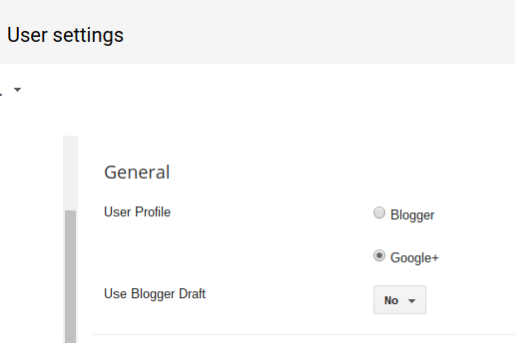
In the latter case, one must first clear the Draft Blogger setting, using the "User settings" dashboard page - where we see the key settingUse Blogger Draft
Change that option to "No" - then clear cache, cookies, and sessions, and restart the browser, to remove all residual components of Draft Blogger.
Use the Settings - "User settings" dashboard page.
Use the Blogger "User settings" dashboard page.
Change "Use Blogger Draft" to "No".
Then, hit "Save settings".
Finally, login to Blogger, properly.
Finally, log into Blogger, using a normal Blogger login. Avoid any bookmarks, favorites, or other saved access URLs. And, be sure to login properly.
Ever since Google+ was released, blog owners have been asking how to post blog updates to Google+. Previously, there was only the possibility of publishing from Google+ to our blogs - and that option was not well designed. Last week, Blogger released this option, in Draft Blogger.Today we’re excited to announce the first way you will be able to leverage Google+ -- by making it possible to replace your Blogger profile with your Google+ profile.
In addition to giving your readers a more robust and familiar sense of who you are, your social connections will see your posts in their Google search results with an annotation that you've shared the post.
As long as you are prepared to use a Google+ profile with your Blogger account, you can send blog updates to your followers.
After you login to Blogger, simply edit your profile. There, you'll see the advice
Connect Blogger to Google+ : Use your Google profile and get access to upcoming Google+ features on Blogger. Learn more Get Started
After you upgrade Blogger to use your Google+ profile, go to the dashboard Settings - Google+, and select "Prompt to share after posting", for automatic sharing. Or, you can use the Posts link "Share" for any post, when convenient.
I suspect there will be several possibilities with this new feature, so watch this space for updates.
The new Designer Templates were released over a month ago, and still not everybody knows how to access them. Almost daily, we see the plaintive query
Where in my Blogger settings can I access the new Blogger template designer?
and to be sure, it seemed, at one time, a bit tricky.
(Update 2010/06/10): The Template Designer is now a production Blogger feature.
 The Template Designer is now part of Production (Orange) Blogger, and is accessible from the dashboard "Template" page - or the navbar "Design" link.
If you click on "Design" from the navbar, you get the "Template" page, where you find the "Customize" button.
 There it is - "Template Designer".
Just login to Blogger, click on "Template", and hit the "Customize" button.
You can't miss it.
One point of contention, repeatedly echoed in Blogger Help Forum: Something Is Broken, isBring back spell checker!
andWhere is the video upload icon in new post editor?
I've been explaining these omissions for a while, and sometimes feel like Sisyphus as I do so.
Well recently, I learned that this may be history sometime soon. If you are able to use Draft (Blue) Blogger, you can now enjoy both spell check and video upload, and new post editor, together. Just remember that the Draft features are only seen if you use the dashboard. If you use the "New Post" link in the navbar, you will get the features of Production (Orange) Blogger - either classic post editor with old photo capabilities, or new post editor without spell check / video upload.
>> Top
Most web pages that you will view on the Internet are written in HTML.
HTML, or Hypertext Markup Language, was designed long ago to enhance simple text, giving it ability to display more than simple letters, numbers, special characters, etc. What you're looking at is mostly simple text. Here, on the other hand, is an example of bold text. And here, italicised text. And here, red text. Are you interested yet?
Here's how I coded the above paragraph in HTML:
Most web pages that you will view on the Internet are written in HTML.<br /><br />HTML, or Hypertext Markup Language, was designed long ago to enhance simple text, giving it characteristics beyond simple letters, numbers, special characters, etc. What you're looking at is mostly simple text. Here, on the other hand, is an example of <span style="font-weight:bold;">bold text</span>. And here, <span style="font-style:italic;">italicised text</span>. And here, <span style="color:rgb(255,0,0);" >red text</span>. Interested yet?
The above paragraph was translated, from the introductory paragraph at the top, by Postable, a web based utility.
You can use Postable, other similar utilities, or Notepad, and convert your HTML to displayable text. When you compose a post, in "HTML" mode, there are several special characters, that you can't enter as simple text.
- The quote symbol " which must be entered as """, or """.
- The apostrophe ' which must be entered as "'" (If you are reading this in Internet Explorer, you may not see this properly!), or "'".
- The ampersand & which must be entered as "&", or "&".
- The less than sign < which must be entered as "<", or "<".
- The greater than sign > which must be entered as ">", or ">".
When you display HTML code in your posts, you'll have to translate each of these characters as in the above examples - or using the corresponding ASCII numeric codes - if you want your code to be selectively readable as code, in a post.
If you want the entire post to display all special characters as code, you can use the Post Editor "Post settings" feature - Options - "Compose mode", and select "Interpret typed HTML". This lets you display a block of code without requiring special character translation, as above - though it prevents you from using formatting in the post, in HTML mode.
To display """, "'", "&", "<", or ">", you enter "&quot;", "&apos;", "&amp;", "&lt;", or "&gt;", respectively.
I'll let you figure out how to display "&quot;" "&apos;", "&amp;", "&lt;", or "&gt;".
Now that the post editor in New Blogger June/July 2008 is part of Production Blogger, you can, optionally, display HTML routinely, by a selection in the Post Editor "Post settings". Or, you can still enter special characters in HTML.
For years, bloggers have complained about the inability / complexity of displaying HTML code in a blog post.
Being told to display "<" as "<" and ">" as ">" confuses many folks - it's not easy typing "<" and ">" - and it's still harder to type "&lt;" and "&gt;", which is how you display "<" and ">", respectively.
Don't ask me to go any deeper.
With the 2008 post editor, we have a new setting, under Post Options.Interpret typed HTML.
The phrasing there is confusing, to me anyway. What it means, in effect, is that typing "<" will display "<" and ">" will display ">", without any work from us, with "Interpret typed HTML" selected for that post. No more having to type "<" and ">".
In other words, in a single post, you'll be able to copy and paste raw HTML and have it display as raw HTML - if you can make single posts without any HTML, like formatting or links.
This feature may hasten the elimination of the toolbar in "Edit HTML", and make that mode still less usable for composing content. And this should make the New Blogger June/July 2008 Post Editor more attractive, at least slightly so.
I use "<pre> ... </pre>" blocks in my posts a lot, as a way to highlight code examples and log outputs. Unlike blockquotes, preformatted blocks preserve indentation in the material highlighted, and with both code and log listings, indentation (horizontal spacing) is as an important part of the display as is line spacing (vertical spacing).
Earlier this month, I showed how the corrected (finally!) vertical line spacing issue had been corrected, and how easily you can tweak the line spacing for elements like pre-formatted blocks. At that time, vertical line spacing for pre-formatted blocks was predictable, and could be tweaked. Since that time and just before the (mostly Draft) New Blogger June 2008 release, vertical line spacing changed.
You can see the problem, in Blogger Spacing Issue Fixed - June 2008. When I wrote that post, the code displayed, as I describe farther down in the post astighter vertical spacing (1.2em)
Now, it's not tighter.
Coming just before the release of New Blogger June 2008, we have to wonder.
>> (Update 6/28 21:00): This issue appears to be fixed.
>> Top
It appears that, in their push to launch (in Draft, mostly) New Blogger June 2008, Blogger overlooked one significant challenge. This month, Mozilla released V3.0 of their popular browser, Firefox.
Various bloggers are reporting odd problems using Blogger, and seem to connect the installation of the new version of Firefox with the start of their problems.
Several bloggers have complained that the links that switch between "Compose", "Edit HTML" , and "Preview" modes are inoperative. Other Bloggers are missing toolbar buttons, or find that some toolbar buttons don't do anything. These are scripting problems, that have been observed from time to time.
Note that Firefox V3.0, like V2.0 before it, was a major update. The Firefox V3.0 install doesn't require any complicated procedures - it just goes right over V2.x. Anybody with any experience with computers - either programming, software support, or user support, knows that installing one version of a program right over another (aka "install in place") isn't always the best policy - even if the software vendor lets you do this.
With Firefox and its extensive add-on library (and most add-ons are produced by third parties, not Mozilla), an install in place is not a good idea for major version upgrades (i.e., from V2.x to V3.0). The extent of the changes made in the base product (Firefox itself) make compatibility problems between the base product and the add-ons a very real problem. Even when neither Mozilla nor the third parties intentionally ignore a problem.
If you do an install in place, and carry over your current Firefox profile, and all add-ons, when upgrading to V3.0, you're going to get some problems. Some add-ons, even though they think that they're compatible with V3.0, may not be so for all applications like Blogger.
If you are seeing any of the above mentioned problems with Blogger, and you just casually upgraded over V2.x (installed in place), that may be why you're here. Try a clean install of Firefox V3.0, while you wait for Blogger to read your problem report - maybe you won't need to file one after all.
- If you're running NoScript (which you should be), Export your whitelist.
- Save your Firefox Bookmarks file.
- From Control Panel - Add or Remove Programs, uninstall Firefox (V2.x, if you're reading this soon enough - or V3.0, if not).
- Delete your current Firefox profile.
- Install Firefox V3.0.
- Test Firefox V3.0 with Blogger.
- Install NoScript, and Import your whitelist saved previously.
- Add each additional add-on (that's available for V3.0), one at a time. Test Blogger and other high risk applications after each add-on is installed.
The good news is that NoScript V1.7.4 does work with Firefox V3.0 and Blogger. That's a start, and that's the first add-on that you should be installing. Just install it on top of a properly installed Firefox V3.0.
>> Top
As I said in my previous post New Blogger June 2008 - The Post Editor, the changes offered to us, today, represent the first major overhaul since December 2006. Of course, I overlooked the rollout of Draft Blogger, without which this update would not be possible.
So, having looked at the Post Editor, let's look at Settings, where we see changes in the Basic and Comments tabs.
There are interesting changes in Basic. We have the promised "Import blog" - "Export blog" links. And next to that, a major change - "Delete blog", which now leads to a Delete your blog confirmation screenThis will permanently delete your blog including all posts. You can create another blog at this address using the Google Account you're currently logged in with, however, we can't restore your blog posts once you choose to delete your blog.
Before you delete your blog, do you want to export it ?
Comments gets a possibly popular improvement. "Comment Form Placement" now has a third option - "Embedded below post". Embedded comments is a long awaited improvement.
>> Top
So for the first major overhaul to Blogger since December 2006 (aka "New Blogger 2006"), the Blogger interface has been updated with lots of shiny features. Currently, the new features are visible only in Draft Blogger.
The first change you will notice when you edit your post. In "Compose" mode, you get a shiny new toolbar - similar to what you'll see in GooglePages. Almost the same buttons, almost in the same order. The two attachment buttons - for Photo and Video - have been combined into one labeled "Image", and moved to the left. Full Justification is gone. And spell check is gone (no major loss there IMHO). But most others are there, and in the same left to right order.
The major change that you will see is in "Edit HTML" mode. The toolbar there is gone.
And it's the same crappy small editing window. The one change that we've been waiting for - still somewhere in the distance.
In Blogger In Draft: New Feature: New Post Editor, we see... there are a handful of other features from the current post editor that are on our to-do list for the new editor. If you rely on any of these, you may not want to use the new editor for everything just yet.
Yet, there are improvements.- The well known vertical spacing problem, caused by the "Convert line breaks" setting and use of "Edit HTML" mode, has been eliminated by a more robustly designed post editor, and a new setting which applies in "Edit HTML" mode. The new setting will be found in "Post Options", which makes it settable per post, rather than per blog. Line break sensitive objects in the blog, like lists, preformatted blocks, and scripts, won't be broken any more by extraneous line breaks.
- The ability to display typed HTML, literally, as HTML, without having to labourously convert each "<" and ">" to "<" and ">", before publishing.
- An improved picture insertion procedure, with each picture being inserted where the cursor is, rather than at the top of the post.
For a more comprehensive, and optimistic, evaluation, see Roberto's Testing Blogger-in-Draft: Post Editor - Compose Mode.
>> Top
Scheduling a post, to publish in the future, is not at all a difficult task. Before you hit the "Publish Post" button, simply select the "Post Options" link just above that button, and change the date and / or time to some time in the future. Then, hit the button.
If it takes effect, when you hit the button, instead of getting theYour blog post published successfully!
screen, you'll see the "Edit Posts" menu, with your new post listed, but shown with the "scheduled" notation besides the date / time stamp.
After the indicated date / time, refresh the "Edit Posts" screen, and you'll see that the post is now published. Or refresh the front page of the blog, and the newest post, just published, should be at the top. With dynamic publishing of the blog, you (or another blog reader) will have to do something in the way of reading the blog, to trigger the publishing.
If you're like me, and like to publish posts with a far future date, to keep some posts at the top of the blog, just Publish the post once without changing the date. Then Edit the post, and change the date as you like. The future posting date only takes effect when you change the date on a new post; edit the post after publishing, and the future posting feature is bypassed.
Are you having a problem with scheduled posts? Which scenario applies in your case?- Things that post immediately, when they shouldn't.
- Things that post later, when they should post immediately.
- Things that never post.
What time zones differences might apply, in your case?- Time zone where you live.
- Time zone on your computer.
- Time zone of the blog.
- Is DST in effect?
And look very carefully, at how you typed the post date and time, and at several relevant settings on your blog and you computer. Did you type the date as "mm/dd/yy", or as "dd/mm/yy", for instance?
>> Top
Taking the concept of the BlogRoll to the new level, we now have the BlogList. The Blog List, one of the shiny gadgets in Blogger In Draft, combines the BlogRoll with a blog feed to give an ever changing list of blogs with their most recently added posts (title and / or post snippet are selectable in the display).
Unfortunately, the Blog List doesn't work, consistently. You can see an example in my Nitecruzr Dot Net home page, in the sidebar section "Nitecruzr Dot Net". In my test, we see "PChuck's Network" with a recent post, but shows no hint of the recent posts in this blog "The Real Blogger Status".
We must remember that Blogger In Draft is a Beta testing platform, and we shouldn't be surprised when it doesn't always work. Blogger Support is aware of this recently discovered shortcoming.
>> Top