Not all blog owners know the best ways to update labels, with the posts in their blog.
We see occasional signs of confusion, in Blogger Help Forum: Learn More About Blogger.
How do I add a label, to many posts at once?
and
How do I correct the spelling of my label, already added?
and
How do I remove all of the labels, from one of my posts?
These owners are not aware how to use the dashboard Posts page - and Post Editor - to add, delete, and edit labels.
Blogger gives us labels (aka "categories") - and two ways to manage labels.
You choose the appropriate procedure, based on what changes are needed. The difference is whether you have one label, that needs to be applied to many posts - or one post, that needs multiple labels applied.
- Using the dashboard Posts page - one label, many posts.
- Using Post Editor - many labels, one post.
Using the dashboard Posts page - one label, many posts.
The Posts page, and the Posts menu, is used to add, delete, and edit one label, for many posts - one label, at a time.
- Use the Label Selection list, to select the posts to display.
- Use the Posts Selector column, to select any or all posts displayed, for action.
- Use the Label Action list to add, delete, or edit a given label, for the selected posts.
- To add a label, click on "New label...", type the new label, enter the new label, and click "OK".
- To delete a label, click on any label that has previously been applied to all posts selected. With any one post selected that does not have the label clicked, that label will be added as necessary.
- To edit a label, you have a slightly more complicated procedure.
- Repeat as necessary, for another label.
The Posts page.
Open the Label Selection list, by clicking on the pulldown arrow.
Select the posts for the label needed.
Use the Posts Selector column, to select any individual posts, or all posts, for action.
Open the Label Action list, by clicking on the pulldown arrow.
Add a label, using "New label" - or delete or edit a label, by selecting one of the listed labels.
Editing the name of one label, for many posts, requires adding a new label - then removing the old label. This is a slightly more complicated procedure - and is subject to label related limits. "Editing" a label, using the Posts page, will require planning, in some cases.
Using Post Editor - many labels, one post.
Post Editor is used to add, delete, and edit many labels, for one post - one post at a time.
- Find and select the "Labels" caption, in the "Post settings" sidebar.
- In the window that opens, add, delete, and edit as necessary.
- Click "Done".
- Click"Update".
Select "Labels", in the sidebar.
Add, delete, and / or edit the label cloud.
If you have multiple labels, in multiple posts, that need changing, you can use a combination of the above techniques.
Beware the label limits.
When updating labels, you need to avoid exceeding the limits.
- Per blog label count.
- Per post label count.
- Per post label character count.
If you exceed a limit, you may have less choices than you would want. If your changes are extensive, you may do well to script the task, before starting.
Making label changes, to multiple labels and / or posts, in a #Blogger blog, can be done using either the dashboard Posts page or Post Editor. There are reasons for choosing either alternative.
One very useful Blogger feature is the option to bypass the Blogger dashboard - to edit the various gadgets, and existing blog posts.
The feature, termed "Quick Edit", provides two different icons, generally visible to the proper recipients, with the option enabled, on the published blog.- The "Quick Edit" "pencil" is visible to administrators and authors, in the posts toolbar, to the right of the "Email Post" icon. This will generally be in one of the post footer lines.
- The gadget "screwdriver / wrench" icon is visible to administrators, to the lower right of each template gadget (except for "Blog Posts").
Though the "screwdriver / wrench" icon is more visible, that icon has no name, and no selection option in the Blogger dashboard. And, there are more mysteries.
The "Quick Edit" option is selected using "Configure Blog Posts", as "Show Quick Editing".
Most blog owners enable "Quick Edit" on their blogs, routinely.

What I see, of the"Search Me, Direct" gadget, in this blog.
 The Quick Edit icon, that I see. You should not not see the icon, when you view this blog - but you may see it, on a gadget in your blog, when you view your own blog.
You enable "Quick Edit" from the dashboard Layout page.
Though the option affects visibility of the "screwdriver / wrench" icons, in the blog template, there is no dashboard Settings selection. It is only selected as a post template option, in "Configure Blog Posts".
The "Configure Blog Posts" wizard is accessible only by Editing the "Blog Posts" gadget, from the dashboard Layout wizard. There is no "screwdriver / wrench" icon which allows access to the "Configure Blog Posts" wizard.
Names used to identify the "Quick Edit" icon may vary.
Adding to the mystique here, residents of Europe may term the "wrench" as a "spanner". Long ago, some blog owners referred to the "screwdriver / spanner / wrench" icon as "dragonflies".
Both the "pencil" and "screwdriver / wrench" icons may or may not be consistently visible. Both icons have been known to be invisible / non functional, with improperly configured cookie or script filters.
The icon may be visible, even when not operational.
And thanks to caching, a blog owner may see either the "pencil" or "screwdriver / wrench" icon when logged out of Blogger - and mistakenly conclude that the public, in general, is able to access the Dashboard or Post Editor for his blog, and change blog options or edit posts. Having logged out, then clicking on any visible icon - or clicking on a carefully configured link URL, we can verify that no illegal access is possible.
And some blog owners, thanks to an intriguing terminology variation, may refer to the "pencil" as an option for editing a "blog".
All that said, use of the Quick Edit URL - with Quick Edit enabled or not - can be very useful, in removing gadgets properly identified.
As many bloggers are periodically enjoying the ability to restore their deleted blogs, other bloggers are discovering the limitations of that ability.I typed for hours. I made one mistake, the whole post vanished, and just as I realised my mistake, AutoSave executed, and saved the empty post. All of that work gone, in an instant!
orI deleted the wrong post! How do I get back the post that I deleted?
These folks are discovering the difference between deleting a blog (which can be recovered), and deleting / erasing a post (which cannot be recovered).
When you delete a blog, it's moved into a "Deletion in 90 days" status, and during the 90 days, you get the chance to change your mind, and restore the blog to operational status.
If you want to prevent AutoSave from saving an empty post at the wrong time, disable AutoSave.
Deleted posts are a different issue. From the "Edit Posts" menu, select one or more surplus posts, and hit "Delete Selected". You get one chance to change your mind.
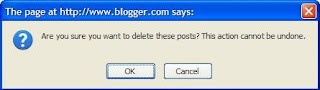 "This action cannot be undone". That looks pretty final.
That's your one chance. Hit OK, and you're done. When you get past that point, your only solution is recovery / rebuilding - if possible. Blogger Support does not provide support, for recovery of deleted posts - sorry.
>> Top
When you create a blog, do you just post, endlessly? I don't.
For every new post I make, I update, revise, and relink each post to other posts. And the dashboard "Posts" menu (formerly "Edit Posts") is an essential part of that activity.
From the Blogger dashboard menu, click on "Posts" - and you're there.
In the "Edit Posts" / "Posts" display, you'll see a menu of each post in the blog, with the ability to- Edit (using Post Editor).
- View (using the browser).
- Add, delete, or even edit Labels en masse.
- Identify all posts using a given label.
- Do an onscreen check of the text in that post.
- Delete a post. If you delete, do so very carefully. And do not delete, to quickly clear a post, with the intention of publishing a new post with that same title. You may use the same title, but the post URL will never be the same.
- Review and delete comments published for the post.
The posts will be ordered by post date, as they are when displayed in the blog.
If you don't see the posts that you're expecting to see, check your post type link bar, at the upper right of the posts list.- All
- Drafts
- Scheduled
- Imported
- Published
If "All" is clickable, click on it. If you want to see a list of posts of a specific type ("Draft" posts, "Scheduled" posts, "Imported" posts, or "Published" posts), click on the appropriate link.
If you have missing posts, that are listed in "Edit Posts", but don't show up in the published blog, look at "Drafts", "Imported", or "Scheduled". Posts that are currently "Draft", "Imported", or "Scheduled" won't show up in the blog, online.
You can also re publish or delete multiple posts, using the "Publish Selected" and "Delete Selected" buttons at the bottom of the posts list. Do the latter very carefully, unless you enjoy posting in BHGI deleted a bunch of posts, by accident. Help me!!!
Once you get the warning, and hit the button, you're past the point of no return, so do this carefully!
Also, keep an eye on the contents of the "Search" box left of the button. If you just used the posts search, don't count on clearing that box and seeing all posts displayed again. You'll have to click on "Edit Posts" and refresh the entire screen. Try this and see for yourself, if you don't believe me.
It's an essential tool for me, and it probably will be the same for you.
>> Top


