Showing posts with label Malware. Show all posts

Sunday, September 2, 2018

The "w i d g e t s e r v e r" Abandoned Domain Is Now Malicious

We've been dealing with a minor recent deluge of reports, from blog owners reporting mysterious redirection of their blogs.

The original typical report, which started like any report involving a respected Internet service going out of business, was annoying - yet benign.

Today, the status changed to malicious.

Right now, "w i d g e t s e r v e r . c o m" is redirecting to "l i b o s t u d i o s . com".

Please enter your email address to continue.

Many gadgets, long known for redirecting, are again redirecting - recently to "w i d g e t s e r v e r . c o m" - and now to "l i b o s t u d i o s . c o m". As some were diagnosed, a few owners advised that the misbehaving gadget had been installed long ago.

We've seen, so far, a few old (not!) friends. M a u k i e , N e o C o u n t e r, and "S u n a n d M o o n P h a s e" can be seen, in some topics.

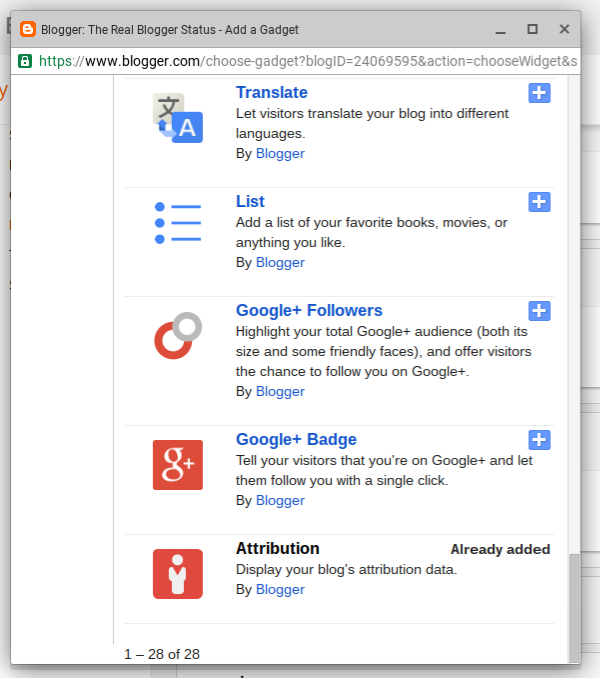
A brief sample of forum topics involving "w i d g e t s e r v e r . c o m" mention gadgets previously installed by Blogger, using the "Add a Gadget" wizard. Recently, Blogger cleared out the third party gadgets from "Add a Gadget" - and the gadgets rejected by Blogger are now hosted by ""w i d g e t s e r v e r . c o m". And they are malicious.

We will not sell, rent, or share, your email address. Your privacy is important to us!

Yeah, right.

And what will you do, with my email address?


What more should be said?


For a week, we've been dealing with #Blogger blog owners reporting mysterious redirecting by their blogs. Many helpers have dismissed the issue, as another popular third party gadget publisher gone out of business.

Today, the redirection changed - to an email mining op.

Thursday, June 16, 2016

Custom Domain Migration, And Redirection Blocking

We see occasional frustration, in Blogger Help Forum: Get Help with an Issue, involving broken or unreliable custom domains.
I setup the Custom Domain properly, following the Google directions.

For some of my readers, my custom domain is not opening. I can see it is going in an infinite loop in the browser - and after a long time, it's throwing errors. My domain is setup, properly. Why do I have to deal with this?
And we will investigate - and in many cases, we find the domain is setup properly.

Some custom domain published blogs have problems, which have nothing to do with the domain setup.

Some custom domain problems involve custom code, added to the template, long ago.

Not everybody is in favour of the ongoing Blogger efforts to convince blog owners to force their readers to use HTTPS / SSL, in blog access.

A number of hackers are making their websites popular, by providing code that lets blogs block forced HTTPS access - just as they provided code that blocked local country domain redirection. Some blog owners add this dodgy code, to their blogs.

This hacking lets blog owners publish their blogs, and use accessories and gadgets that only support HTTP access. Unfortunately, with third party code, you get what you get.

Some third party code, which blocks HTTPS blog access, works OK - for a while.

When a blog is published to a custom domain, redirection to "blogspot.com" causes a redirect loop - or a security check.

<script type='text/javascript'>
var blog = document.location.href.toLowerCase();
if (!blog.match(/\.blogspot\.com/)) {
  blog = blog.replace(/\.blogspot\..*?\//, ".blogspot.com/ncr/");
  window.location.replace(blog);
  }
</script>

This is clever code, seen some time ago when used to block country local domain redirection. Then, as now, some blogs might be deleted or locked as malware hosts - or the blogs would become intermittently inaccessible.

Is the unreliability appropriate? You can add what code you like, to your blog. Eventually, what you add may cause you problems.


Some #Blogger blog owners add clever code, to block HTTPS Redirection, to their blogs. This is the same hacker provided code, used long ago to block local country domain redirection.

Like country domain redirection, the code added may work fine, for a while. Eventually, the blog will be deleted / locked for malware hosting - or will start throwing 404 errors and similar confusion.


https://productforums.google.com/forum/#!category-topic/blogger/71k8xOXxByI

Monday, May 23, 2016

Blogger Magic - Using "Add a Gadget"

One of the most useful features of Blogger is the ability to add many different accessories, to a blog.

There are accessories, for every blog - and for every owner preference. The "Add a Gadget" wizard, in the Blogger dashboard, is the best procedure for adding accessories, to customise a blog reliably.

Using "Add a Gadget" is a simple process. It will be most useful, in the long term, if used cautiously, however.

Adding a gadget is not difficult.


Start from the Blogger dashboard Layout page.


Click on any link to "Add a Gadget", to that template section.

This link, for instance, will add a gadget to the right sidebar.


Choose any of dozens of interesting and useful accessories.


Be knowledgeable, when adding accessories.

Similar to the process of adding an HTML gadget, there are a few mistakes that you can avoid, when adding a gadget in general.

  1. Some sections of the Layout page may not allow gadgets to be added.
  2. When you find an interesting gadget, be selective!
  3. Some Blogger provided gadgets are found under "More Gadgets".
  4. Don't use "Add your own" - unless you know what you're doing!
  5. Add a new gadget, when adding important features.
  6. A gadget, as added, will be displayed on every page of the blog.

Some sections of the Layout page may not allow gadgets to be added.

Each template section can be subject to gadget limits, and to locking. This will prevent addition, removal, and / or re positioning of gadgets.

If you're unable to add, remove, or reposition a gadget, you may have to edit the template - and change the section settings.

When you find an interesting gadget, be selective!

"Add Gadget" lists gadgets produced by third party developers, as well as by Blogger Engineering. Some non Blogger produced gadgets won't benefit your blog, in the long term.


Look for "By Blogger", for the best choices.


Not all third party gadgets are intentionally malicious - but the most reliable gadgets will be explicitly labeled "By Blogger".

Some Blogger provided gadgets are found under "More Gadgets".

The "Basics" tab in "Add a Gadget" contains mostly gadgets "By Blogger" - and most gadgets "By Blogger" are found in "Basics". Some gadgets "By Blogger" are in "More Gadgets" - and you may have to search that list, carefully, to find what you need.

Don't use "Add your own" - unless you know what you're doing!

There are 3 tabs, in "Add a Gadget".
  1. Basics.
  2. More Gadgets.
  3. Add your own.
The latter, "Add your own", can lead to frustration.

If you are not familiar with coding XML gadgets (and probably do not need this advice), don't bother with "Add your own". Stick with "Basics" and "More Gadgets".

Add a new gadget, when adding important features.

You can install HTML code using the Template Editor - or you can add an HTML snippet into an existing HTML gadget - if you wish. I highly recommend that you add a new HTML gadget, for each important accessory, though.

A gadget, as added, will be displayed on every page of the blog.

By default, a gadget, once added, will be visible on every template page. You can, with some care and effort, make specific gadgets display selectively.

Enjoy adding accessories, properly.

So enjoy accessorising your blog - just accessorise carefully.


You can add any number of useful accessories, to a #Blogger blog, using the "Add a Gadget" wizard in the dashboard Layout page. The best choices are explicitly labeled "By Blogger".

Monday, April 4, 2016

Blogger Magic - Add An HTML Gadget

Many popular accessories start with raw HTML / JavaScript code, from different third party services.

One of the advantages of publishing a Blogger blog is the abundance of available accessories. With Blogger being in the top 3 of Internet publishing platforms, every third party service wants customers who publish using Blogger.

There are plenty of abusive or malicious accessories, that should not be installed, even when offered - and there are ways to best install the accessories, that can be safely installed.

Most accessories, from third party services, will be provided as HTML / JavaScript.

To add HTML / JavaScript code, to a blog, you can use any of several techniques - though using a new HTML / JavaScript gadget is the smartest choice. Adding an HTML gadget, to a Blogger blog, is not difficult.

Add an HTML / JavaScript gadget, using "Add a Gadget" in Layout.

  1. Start from the "Layout" dashboard menu page.
  2. Click "Add a Gadget".
  3. Click the "+" button, for "HTML/JavaScript".
  4. Paste the code, given to you, into the "Content" box.
  5. Click "Show HTML/JavaScript", if the option is provided.
  6. Click "Save".
  7. Position the new gadget anywhere in the Layout display.
  8. Click on "Save arrangement".

Start from the dashboard Layout page, and select any convenient link to "Add a Gadget". Select "HTML/JavaScript" from the "Basics" tab, in the "Add a Gadget" wizard.


Select "HTML/JavaScript" in "Basics".


Paste the code, that you have to add, into the "Content" window, in the "Configure HTML/JavaScript" wizard. And if you wish, give your new gadget a Title.


Paste the code that you have, into "Content" - with the wizard in HTML mode ("Rich Text" displayed).


And select "Show HTML/JavaScript", if provided for this template - then click on "Save". Finally, click on "Save arrangement".

Avoid several well known mistakes, when adding gadgets.

There are mistakes, that you can avoid - if you know what to do.

  • Be selective, when adding third party code.
  • Add a gadget, using "Basics".
  • Edit an HTML gadget, with "Rich Text" displayed as the caption (for HTML) - or with "Edit html" displayed as the caption (for Rich Text).
  • With a dynamic template, attach or embed the content in a static page.
  • With a mobile display, enable the gadget, if you want it to be viewed.
  • With templates that have a disappearing sidebar, position the gadget in the footer.
  • If "Show HTML/JavaScript" is provided for this template, select that option.

Be selective, when adding third party code.

It's your blog - and you are allowed to install any accessories and tweaks that interest you. For long term stability and success, though, you should try to only install code from reliable sources.

Your readers will be happier, with your blog using reliable accessories.

Add a gadget, using "Basics".

You'll start with an "Add a Gadget" link, on the dashboard Layout page - and the "Add a Gadget" wizard.

The "Add a Gadget" wizard has the "Basics" tab, with the "HTML / JavaScript" gadget in the list - and it has the "Add your own" tab. You should find the "HTML / JavaScript" gadget, in "Basics".

Edit an HTML gadget, with "Rich Text" / "Edit html" displayed as the caption.

The "HTML" / "Text" gadgets, intriguingly have the "Edit Html" / "Rich Text" tabs.

If you want to add / edit HTML or JavaScript, the caption should read "Rich Text".


The HTML gadget, in HTML mode.


Conversely, if you want to add / edit text, the caption should read "Edit html".

It's your choice. The "HTML / JavaScript" and "Text" gadgets are the same - just the captions ("Edit html" and "Rich Text") differ.

With a dynamic template, attach or embed the content in a static page.

Adding gadgets to dynamic templates is not a straightforward process. Gadgets have to be written specifically to support dynamic templates - and the HTML gadget is not written for this.

If you want an HTML gadget to work in a dynamic template, you'll need to attach or embed the gadget, in a static page.

With a mobile display, enable the gadget, if you want it to be viewed.

By default, the "HTML / JavaScript" gadget does not display, on a mobile browser. You will have to use the Template Editor, and enable the gadget to display, in mobile mode.

With templates that have a disappearing sidebar, position the gadget in the footer.

Some Responsive class templates have a sidebar that is hidden by default. To see the sidebar, you click on the "hamburger" icon in the header.

If you want your new gadget to work with the blog loaded - even without the sidebar showing - you need the gadget in a visible section. The footer is a better choice, in this case.

If "Show HTML/JavaScript" is provided for this template, select that option.

If the option to "Show HTML/JavaScript" is provided in the "Configure HTML/JavaScript" wizard, be sure to select that - if you want the gadget to operate, with the blog loaded. If the gadget should not be visible to the reader, but it needs to operate, you still must enable this option.

It's your blog.

There are ways to make an HTML gadget work, while ignoring the above advice. Long term success will be much more likely, though, with attention to the details.


One of the most common accessories, added to a #Blogger blog, starts with an HTML / JavaScript gadget. This is a very versatile gadget - and it's not difficult to install. There are several common sense details, however.

Thursday, March 31, 2016

CloudFlare, Custom Domain Publishing, And HTTPS

A few blog owners, who publish blogs published to custom domains, are becoming impatient, waiting for Blogger Engineering to finish the Blogger upgrade to support HTTPS / SSL.
If I get a domain through Google Domains, will I be able to get HTTPS?
Unfortunately, no. HTTPS / SSL is simply not available, to blogs published to custom domains.

HTTPS is not available, for non BlogSpot published blogs.

Whether registered by eNom, GoDaddy, or Google Domains, it simply is not possible to publish a non BlogSpot URL as a supported custom domain, and make HTTPS / SSL available. CloudFlare, a supposed alternative, does not produce a supported custom domain.

A proxied CloudFlare domain looks like malicious redirection.

In some cases, a CloudFlare DNS "solution" tried by some blog owners, will look like dangerous / malicious redirection. Some blogs will show up as "Deceptive sites", aka "phishing".


Some blogs using CloudFlare, for custom domain publishing, will be classified as "Deceptive" sites.


Others will produce alarming warnings about malware.


"This blog is not hosted by Blogger and has not been checked for spam, viruses and other forms of malware."


Click on "Details".


Look at the warning.

Phishing sites pretend to be other websites to trick you.

And there is the typical Dig log, with a redirecting proxy service, like CloudFlare.

kireisubs.id. 300 IN A 104.27.133.198
www.kireisubs.id. 300 IN A 104.27.133.198

or

topmovies21.biz. 300 IN A 104.28.0.106
www.topmovies21.biz. 300 IN A 104.28.0.106

This is the basis for malware / phishing classification.

Any observed malware warning is generally a false positive - most custom domain published blogs do not contain malware. Even so, it's not likely that the "Deceptive site" classification will be easily corrected - or the malware warning interstitial display removed.

And this is one more blog owner, who must next be provided instruction to correct the DNS addresses.

Having corrected as instructed, DNS addresses will be asymmetrical, and righteous.

kireisubs.id. 86400 IN A 216.239.32.21
kireisubs.id. 86400 IN A 216.239.34.21
kireisubs.id. 86400 IN A 216.239.36.21
kireisubs.id. 86400 IN A 216.239.38.21
www.kireisubs.id. 86400 IN CNAME ghs.google.com.

With DNS corrected, Google shows "Not dangerous" - but the warning still displays.


"Not dangerous".


Note "CloudFlare" is still seen as the host.


You can report an error, to SafeBrowsing.


False classification now requires time consuming site review.

Use "Report Incorrect Phishing Warning", if you believe the site is safe.

Finally, get the site reviewed, from the Security Issues page in Security Console (Webmaster Tools) - Security Issues.

And while the blog remains offline, search reputation - and the owner - will suffer.


Some #Blogger blog owners want to provide blogs published to custom domains - and offer HTTPS connectivity. Since Blogger cannot provide custom domains with HTTPS right now, the blog owners are using CloudFlare, which provides an HTTPS proxy.

Unfortunately, a CloudFlare proxy looks like malicious redirection - and blogs using CloudFlare are being labeled as "Deceptive" sites.

https://productforums.google.com/forum/#!category-topic/blogger/ApuJ58a4-kg

https://productforums.google.com/forum/#!category-topic/blogger/-LoJCeX6DEA

https://productforums.google.com/forum/#!category-topic/blogger/DhAFOtJFoCw

Tuesday, March 8, 2016

Train Security Products, And Keep Your Blog Clean

Everybody who uses a computer - and expects to use their computer for any amount of time - has one or more protective products on their computer.

Anybody who publishes a blog, with an audience that has any need for security, is going to receive occasional reports from would be readers.

I can't read your blog! My computer displays an "Unsafe website!" warning!

All computer security products, unfortunately, will occasionally generate false positives. Analysing false positive malware reports is as much a part of every security product, as identifying the actual malware.

If you publish a blog, you need to know how to handle reader malware alert reports.

Know online tools, for researching reported problems.

Google provides 2 websites, for analysis of blog / website malware alerts. Both Google SafeBrowsing, and VirusTotal, are Google products that can help to identify actual problems with blogs and websites.

Besides the two Google products above, I use 3 security analysis websites, which can identify specific security problems in blog / website code. Quttera Online Website Malware Scanner, and Sucuri SiteCheck, and Trend Micro SIte Safety Center, have been useful at various times, when a security problem is reported.

You may, from time to time, use all of these - and possibly others - in identifying and verifying a security problem with your blog, or with blogs and websites that you link. For best results, always specify the canonical blog URL, when requesting security analysis - and when sharing the blog, or individual posts.


Specify the canonical URL.


Not a country local domain.


Know what you need to do, to keep your blog healthy.

As a blog publisher, you will occasionally have 2 jobs to do, when receiving a malware alert report which references your blog.

  1. Verify / identify / remove any actual malicious content.
  2. Report false positives, to the protective service displaying a false positive.


Everybody who publishes a blog, with any reader audience, has seen this advice, or something similar, when surfing their blog.


Know how to keep your blog clean - and your reputation clean.

You have to use online malware analysis services, to identify any problem which you may have created, by installing the latest "gotta have this!" accessory on your blog. And, you have to report any false positive alert, to the owners of any security product, that falsely identifies your blog as a problem.

You do both, to support your readers. You do not want your readers computers hacked, through your inappropriately accessorising your blog - but at the same time,you want your readers to be able to read your blog.

  1. Keep your blog content clean.
  2. Keep your blog reputation clean.

Do both - or you may not have readers, to read your blog.


Any #Blogger blog owner needs to support the blog readers, by publishing a blog clean of any malware, and with a good reputation with the various security products that prevent malicious action by dangerous blogs and websites. Your readers need the ability to use their computers to read your blog - and they need their security to not falsely identify your blog as a problem.

Thursday, February 25, 2016

Custom Domain Publishing, And Alias Blocking

Some blog owners setup their new custom domain, check all settings carefully (and correctly) - then find that it does not work.

We see the confusion, in Blogger Help Forum: Get Help with an Issue.
The addresses were right - and all the DNS servers updated correctly. But when I open the website, it does not open. It continuously reloads for 5 minutes and after 5 minutes it shows an error.
It's frustrating, when everything is setup properly - but still no results.

It's also frustrating, when you forget about unsupported tweaks that you made, to the blog - then have to ask for help.

Whenever changing the URL, check for - and remove - any redirecting scripts.

Before you publish a blog to a new URL, you need to check the template, for any redirecting scripts, that you may have previously installed.

<script·type='text/javascript'>
var·blog·=·document.location.href.toLowerCase();
if·(!blog.match(/\.blogspot\.com/))·{
  blog·=·blog.replace(/\.blogspot\..*?\//,·".blogspot.com/ncr/");
  window.location.replace(blog);
  }
</script>

Scripts which redirect - or block redirecting, when the blog is published to BlogSpot - will not work for you, when you publish to a non BlogSpot URL.

You will need to connect URLs, when possible - without scripts interfering.

Any time you change the URL of the blog, you're going to need some ability to link from the old URL to the new URL. Before you change the URL - either BlogSpot to BlogSpot, or BlogSpot to custom domain - check the template, for redirecting scripts.

Any redirecting scripts, that might have helped you with the blog originally published, will be a problem, when you change the URL. Remove any scripts, before changing the URL.

Better yet, don't add redirecting scripts. If you got this far, without having the blog classified as a malware host, consider yourself lucky.


Some blog owners install mysterious scripts, to "protect" against unwanted Blogger features - and forget about their unwise tweaks. When they change the URL of the blog - and the blog, under the new URL reacts to the previously installed tweaks - they are clueless.

If you make unsupported tweaks to your blog, only you can correct problems that arise, later.

Sunday, December 14, 2014

NeoWorx, And The Redirecting NeoCounter Gadgets

This week, we're seeing the anxious query, in Blogger Help Forum: Get Help with an Issue.
Is my blog for sale? I try to view my blog, and I see
This Domain Is for Sale
Have I lost my blog?
Fortunately, in most cases, the answer is "No, your blog is not for sale." - and "No, you have not lost your blog!".

In mid 2014, NeoWorx, the publisher of popular gadgets like NeoCounter, closed up shop. Back end code for their gadgets, installed on thousands of blogs and websites, had been served from their private libraries. Having closed their domains, the gadgets stopped working.

Initially, "neoworx-blog-tools.net" was purchased by a squatter.

The squatter apparently had hoped to capitalise on the traffic to the domain, provided by the blogs and websites that used the installed gadgets. In late 2014, the squatter gave up (or possibly, sold to another squatter), and "neoworx-blog-tools.net" is now showing a very plain parked page.
This Domain Is for Sale
Either the squatter made a profit on his purchase, by serving ads to the would be viewers of the host blogs and websites, and decided to cash in - or he lost his investment, and decided to cut his losses and move on.

In theory - and by early Internet rules of etiquette - anybody purchasing a domain that has accumulated traffic from the efforts of the prior owner, and expects to be receiving traffic from unwary people like our blog readers, should put advice on their home page.
Sorry, NeoWorx (publisher of NeoCounter and other blog / website accessories) is no more.
or
Looking for NeoCounter? Try their new website.
The advice, to at least accompany the ads displayed there, would provide a brief hint to the unwary reader, that what he sought (i.e., blog content - or a given gadget) is no longer available (as suggested by the first advice). If NeoWorx had renamed themselves, or been bought out, the second advice would have been useful.

The initial purchasers of "neoworx-blog-tools.net", in defiance or ignorance of etiquette, simply served a page full of ads, and no advice. The ads did not target the owners of the blogs and websites - they simply confused the unwary readers - and provided no hints of why they were there, instead of viewing the blog or website.

Subjected to waves of complaints from angry readers, the blog owners had earlier posted in Blogger Help Forum: Get Help with an Issue.
Why is my blog directing to a page full of ads?
And we would examine the blog code in our browsers, find the gadget which references "neoworx-blog-tools.net", and instruct the blog owner to remove the gadget.

Now, instead of angry readers, who complain of ads, the blog owners suffer questions from confused readers, asking if the blog is being sold. And we continue to advise people to remove the misbehaving gadgets.

To the former owners of NeoWorx, and the subsequent domain owners:
Blogger blog owners are not cash cows.
We appreciate accessories, if you can support them. But please, don't produce gadgets that require your program libraries, run up huge volumes of traffic to your library domains, then sell out to spammers.

Here, we have one very real example why adding gadgets from third party developers may not always be in your best, long term interest.

Monday, December 8, 2014

Use Common Sense, And Protect Your Blog

We see various questions about getting advice and non standard accessories / code, from blogs and websites advertised outside Blogger / Google control - generally in Blogger Help Forum: Get Help with an Issue.
Why can't I see my blog? Every time I click on "View blog", I get a face full of ads!
and
Where can I get accessories, gadgets, and templates for my blog??
and
How do I know what accessories, gadgets, and templates are safe, for my blog?
and
Why did Blogger lock my blog, as a malware host?
All of these folks are discussing the same issue - blog content security. Some are asking properly, before they cause their problems - but others are not.

We have several known bad actors, right now - who have been putting out various blog accessories which, initially, work fine.

After thousands of victims have installed some accessories on their blogs, the owners and readers observe that the blogs are suddenly redirecting to advertising pages, or throwing popup ads on top of blog content. The latency period, for some blogs which are the first to install a new hacker provided gadget, may be as long as 6 months to a year.

By the time any malicious gadgets are discovered, identified, and removed, the victims have to deal with unhappy readers, who don't enjoy seeing a screen full of ads, instead of their favourite blog to read.

Search engine reputation is also affected by this problem. In some cases, the malicious gadgets may be detected by Blogger - and the host blog (ie, your blog) is locked, as a suspected malware host. Even if Blogger does not detect a problem, services outside Blogger will trash your blog.

Thoughtful blog owners will ask how they can get good, reliable, and safe blog accessories. I would start, by ranking the possibilities.
  1. Blogger "Add a Gadget", with gadgets labeled "By Blogger".
  2. Websites provided by well known Internet services.
  3. Blogger "Add a Gadget", with gadgets not labeled "By Blogger".
  4. Non Blogger websites provided by developers.
  5. Non Blogger websites provided by hackers and spammers.


1. Blogger "Add a Gadget", and gadgets labeled "By Blogger".

The most reliable and safe gadgets will always be found in the "Add a Gadget" library, and be labeled "By Blogger". You have to trust Blogger, if you are going to use their publishing platform in general.

The optional gadget library, and gadgets "By Blogger", is just as safe as the dashboard, and components referenced by the dashboard.

2. Websites maintained by well known Internet services.

Most well known Internet services and social networking platforms will provide gadgets that are designed for Blogger. The best gadgets will be labeled "For Blogger", and be written in Blogger compatible XML. Some general purpose gadgets, written in HTML / JavaScript, will also be suitable.

Almost any gadget in this category, if written by the staff of the service in question, will be free from malicious intent. Both FaceBook, and Twitter, for instance, provide gadget libraries. Because these gadgets were not written by Blogger staff, they will not be as reliable as Category #1.

3. Blogger "Add a Gadget", and gadgets not labeled "By Blogger".

Many gadgets provided in "Add a Gadget" will be provided by third party developers. Hopefully, Blogger / Google exercises some quality control, over gadgets distributed through their library.

That said, the first mass hacking of Blogger blogs, of 2009 - 2010, came through gadgets that were distributed from the "Add a Gadget" libraries. One such gadget was discovered, just last week.

Not all third party accessories are provided with malicious intent. Unfortunately, even if not provided maliciously, some accessories may be unreliable because of periodic changes by Blogger.

4. Non Blogger websites provided by developers.

After the unforgettable blog hijacks of 2009 / 2010, then 2010 / 2011, Blogger / Google Security got aggressive with the problems of malicious gadgets being served from their libraries. Most recent hacking attacks have been distributed from websites outside the control of Blogger / Google.

Some non Google websites are provided by third party developers, who write code almost as reliable as Blogger staff. However, if the choice for my blog was between gadgets in Categories #3 and #4, and be of equal functionality and suitability, I would choose #3 over #4 - and I would seriously recommend the same, if asked.

In some cases, legitimate third party developers have provided accessories that require access to their code libraries. The developers have gone out of business, and have cancelled the domains where the code libraries were served. The abandoned domains have been bought by spammers, as investments - based on serving ads to accumulated incoming traffic, from people surfing to the blogs and websites which have the accessories installed.

In some cases, the domains were actually abandoned by the developers. In other cases, the developers were spammers, who sold their domains for a good profit, to other spammers.

We, the blog owners, cannot really tell which case is involved, when our blogs start redirecting to pages of spam - or even malicious domains, serving malware to our readers. We do need to protect our readers, though.

5. Non Blogger websites provided by hackers and spammers.

Some websites outside the control of Blogger / Google should not be trusted. I would seriously suggest without hesitating, that you stay away from websites like "SEOYourBlog.com", "MakeMunyFromHome.info", and such.

Any blog or website, with clever initials in the name, should be considered, with great caution. Although "SEO" was originally a serious concept, most websites with "SEO" in the name will not have your best interests in mind. Likewise "GPT, "PTC", "PTS" will do you no good.

If and when you add gadgets, always add them using a new HTML / JavaScript gadget. Gadgets added using "Add a Gadget" can be easily removed, if they go bad. Gadgets added using "Edit HTML" must be removed using "Edit HTML" - and some gadgets will be extremely challenging to diagnose and remove.

Security begins with you.

Friday, December 5, 2014

Simple Edit / Removal Of Problem Blog Gadgets

Blog owners frequently have to edit or remove various blog gadgets - and sometimes need coaching, to edit or remove.

Editing or removing gadgets, normally, is pretty simple - when you know what you're looking for. Whenever you are logged in to Blogger, as a blog administrator, you can find the "Edit" link, on the dashboard Layout wizard - or the "Quick Edit" link on the blog (when "Quick Edit" is enabled), as displayed.

Sometimes, identifying a problem blog gadget, to another person, isn't easy. What happens, if someone misreads your instructions?

Even when identified, it may not be a simple task to locate a given gadget.
  • The "Quick Edit" option may not be enabled, on a blog.
  • Even when "Quick Edit" is enabled, a blog with lots of gadgets may be tedious to search, looking for the gadget in question.
  • Mistakes can be made. What happens, if you click on the wrong link, and remove the wrong gadget?
  • When a malicious or misbehaving gadget is involved, either loading the blog or the dashboard may produce unacceptable results.

Fortunately, with the right diagnostic work, we may not have to load either the blog, or the dashboard, to edit or remove an identified gadget.

Start by locating, and identifying, the gadget in question. As an example, I will use a gadget from my test blog. First extract the code, for gadget "HTML13" - my so called "Empty HTML Gadget".
<div·class='widget·HTML'·id='HTML13'>(LF)
<h2·class='title'>Empty·HTML·Gadget</h2>(LF)
<div·class='widget-content'>(LF)
This·is·a·(<span·style="font-weight:bold;">somewhat</span>)·empty·HTML·gadget.(LF)
</div>(LF)
<div·class='clear'></div>(LF)
<span·class='widget-item-control'>(LF)
<span·class='item-control·blog-admin'>(LF)
<a·class='quickedit'·href='//www.blogger.com/rearrange?blogID=6231987187698503326&widgetType=HTML&widgetId=HTML13&action=editWidget§ionId=sidebar-right-1'·onclick='return·_WidgetManager._PopupConfig(document.getElementById("HTML13"));'·target='configHTML13'·title='Edit'>(LF)
<img·alt=''·height='18'·src='http://img1.blogblog.com/img/icon18_wrench_allbkg.png'·width='18'/>(LF)
</a>(LF)
</span>(LF)
</span>(LF)
<div·class='clear'></div>(LF)
</div>
Look for "quickedit" - and extract the "href" value.
//www.blogger.com/rearrange?blogID=6231987187698503326&widgetType=HTML&widgetId=HTML13&action=editWidget§ionId=sidebar-right-1
Be really careful here - extract the complete string, between the ' ... '.

Add "https:" to the front of the extracted value.
https://www.blogger.com/rearrange?blogID=6231987187698503326&widgetType=HTML&widgetId=HTML13&action=editWidget§ionId=sidebar-right-1
And there is the exact URL needed, to access the Edit wizard, for the gadget, "HMTL13".

Now, to point out the "obvious".
  • The URL will work, for the gadget on any blog, even if "Quick Edit" is not enabled for the blog - for a blog administrator.
  • The URL will not work, for the gadget on any blog, even if "Quick Edit" is enabled for the blog - for a non blog administrator.
  • Disclosure / possession of the URL poses no security threat to your blog - nor any benefit to a hacker. Try the link below, and see for yourself.
  • Even if you are logged in as an administrator, the URL may not work - if "third party" cookies are not enabled.

The URL is simply a tool, which can be extracted, by anybody - and can be used, by a blog administrator (and only by a blog administrator), when properly logged in to Blogger.

Having noted the "obvious", your life can be a bit simpler, when instead of having to instruct someone how to locate and use the correct "Quick Edit" or Layout Edit link, to remove a problem gadget, you simply instruct them.
Login to Blogger, and click on the link below:
https://www.blogger.com/rearrange?blogID=6231987187698503326&widgetType=HTML&widgetId=HTML13&action=editWidget§ionId=sidebar-right-1.
Then click "Remove".

Now, extract and try a link from your blog - and see for yourself. Isn't that simpler?

Monday, December 1, 2014

Don't Password Protect A Blogger Blog

We see the signs of naivete, periodically, in Blogger Help Forum: Learn More About Blogger.
How do I require my readers to enter a password, to keep my blog safe from public view?
This blog owner does not understand the realities of setting up a private blog.

Long ago (very long ago), a computer system might have "private" files, and a shared password, known by everybody, for each file. Nowadays, a private Blogger blog uses team blog access - or team blog ownership - and each team member gets to choose her / his own Blogger account, with a password that he / she decides to use (and hopefully, remember).

Having a group shared password is fine, for a small group, where nobody leaves. What happens when somebody leaves the group?

Group shared pass codes are fine - until the group changes.

Have you ever worked in an office, where the doors are protected by a tumbler key set - or maybe combination push buttons? That's a shared password system. What happens when somebody leaves the group? Every door has to be re keyed - or the locks have to be changed.

What if the blog owner has to change the password for the blog, because somebody shared the password with a stranger - or somebody just left the group? Have you ever gotten to work, and found that your key - or assigned push button combination - doesn't work?

Have you ever had to wait for the department secretary to get to work, and give you a new key, because they changed the locks last week, while you were out of town? Have you had to anxiously search your email, looking for the message from the manager, providing the new password (here's hoping that you can get online, and your computer / phone has a freshly charged battery)?

Personal pass codes promote individual responsibility.

The personal account / password approach is so much more supportable - and it promotes responsibility. Have you ever had the manager ask everybody who came in over the weekend, and left the office in a mess?

With everybody using a common physical key, to open the door, there is no telling who comes and goes. Using individual passwords - or preferably, a card key system - you can audit employee presence, and encourage responsible attendance.

Use personal Blogger / Google accounts, for better security.

Using a personal account / password is so much better than a group shared password. Don't waste time trying to protect your blog, behind a shared password script.

Just make the blog private. Invite designated members - and let each member choose their own account / password, for blog membership.

Monday, October 13, 2014

Try To Resolve Any Ownership Issues, Before You Request Spam Review

Spam review requests, in Blogger Help Forum: Get Help with an Issue, are not unusual topics.

Occasionally, we get a spam review request, with a twist.
My blog has been deleted - but I don't have a "Restore", or a "Review" link on my dashboard!
There are various reasons for blogs disappearing from the dashboard, not all of which a blog owner may be immediately aware.

Consider The Issues
I find it's best to try to identify any content / ownership issues, before starting the spam review dialogue - or starting over, with a new blog.
  • It is almost always in the best interest of the owner, to request review using the dashboard link, before requesting a manual review in the forum.
  • If we bypass ownership resolution, and go straight to spam review, the blog may be restored to service. In some cases of "I have no 'Restore' or 'Review' link on the dashboard", the blog, when restored, will be under the control of the account which the owner should be using. This may not be the current account, which has no "Restore" or "Review" link on the dashboard.
  • This is the best time to diagnose and resolve your problems. If you give up and set up another blog - and if you make the same mistakes with the new blog - your Blogger account will be at risk, because you may look like a non repentant spammer.
  • If the blog was deleted because of multiple DMCA violations, nothing can be done from the dashboard. DMCA violations have a formal appeal process.
  • If the blog was deleted / locked because of detected hacking, absolutely nothing can be done. The account, and all blogs owned, have to undergo integrity checking, before any blog can be restored.
  • If the blog was deleted because of detected malware, it can only be restored, and review requested, using the "Restore", then "Review" links. If a blog, deleted / locked for malware, is submitted for spam review, the blog will sit in the spam review queue, then be returned with the verdict "Malware" - and nothing will be accomplished.


Too many Blogger blog owners, accidentally or intentionally, setup multiple Blogger accounts.

Accidental Multiple Accounts
Some blog owners accidentally setup new Blogger accounts. Too many blog owners, because of the Blogger / Google (One Account" login display, end up using the "Create an account" link - when they should login to an existing account, which owns their blog(s). When this happens, they are able to login to Blogger, but find an empty dashboard.

Seeing an empty dashboard, the next step is to recover control of the blog. When this is done, they now are able to login to Blogger, using the right Blogger account - but with the new, accidentally created account still out there.

Some blog owners will continue, periodically logging into Blogger, using the wrong account - then recovering control of the blog, using the email address. This procedure, cumbersome that it may be, will work fine - until the blog is classified as a spam blog, or until the original Blogger account is deleted or locked. In either case, the blog owner will login to Blogger, using the wrong account - but find no dashboard link.

Intentional Multiple Accounts
Other blog owners intentionally setup new Blogger accounts, to publish a blog, anonymously. As long as they religiously remember the proper account name and password, to access each different blog, this is not a problem.

The problem here comes when they forget about using the correct Blogger account, or become temporarily confused by the Blogger / Google (One Account" login display. With the blog in question deleted or locked, as above, they login using the wrong account - and find the Blogger dashboard, again lacking the expected "Restore" or "Review" link.

With either the accidental or intentional account creation, the blog owner will be unable to login to the correct Blogger account, and request review using the dashboard link. This requires the manual review, which takes more time to complete, if the blog was deleted as a spam host. If the blog was not deleted as a spam host, the manual review will be a waste of time.

If and when the blog is reviewed and restored, the owner will still be unable to access the blog from his account. The blog will be online - but with no active owner.

Consider The Possibilities
If the blog owner is aware of possible access, ownership, and TOS issues, before the review process is started, he may be able to resolve his mistake while the review is underway. This will allow him to take control of the newly restored blog, immediately - rather than spending time, after the blog is restored, going through the blog ownership recovery process.

Start Diagnosis Properly
Whatever the origin of the account confusion issue, diagnosis of deletion starts with identification of the owner account. The dashboard of the owner account - and email sent to the owning account - may provide key clues, that indicate why a blog was deleted. Knowing why a blog was deleted may help us avoid an unnecessary spam review.

Monday, September 15, 2014

Third Party Email Collection / Login Gadgets Being Detected As Malware / Phishing

Recently, we've had several reports from naive blog owners, with blogs locked for malware or phishing, in Blogger Help Forum: Something Is Broken.

Some owners have found accessories, such as email address collection or even a convenient login gadget, offered by helpful third parties. Installing the new gadgets, they have later received the well known (automated detection) notice, from Blogger Support.

Both third party email collection, and convenient login gadgets, are righteously classified as malware.
  • Email address collection, run through a third party database, can provide hackers a starting point for account and blog theft, using botnets - or the account holder may be added to email distribution lists for spammers.
  • Third party login gadgets are blatant phishing tools - and can be used for immediate account and blog theft.
Neither accessories are good, for your readers.

Any such third party accessories are just hacking / phishing tools. When you install this on your blog, it becomes hacking / phishing enabled by you.

You can collect email addresses, if you wish - using a FeedBurner Email Distribution gadget, which allows your readers to subscribe to a feed from your blog. If you want to offer your readers a convenient Blogger / Google login, add an HTML gadget, targeting
http://www.blogger.com
and let them use the standard Google "One account" login screen.

Don't be a dupe for the hackers, phishers, and spammers - keep your blog clean, and keep your blog online. The future of your blog, and your readers well being, requires your wise decisions.

>> Top

Sunday, June 29, 2014

There Are No Shortcuts Or Workarounds To A Stable Custom Domain

Some Blogger blog owners treat custom domain publishing, as drivers in Miami USA treat the suburban streets.

Have you ever been to Miami, Florida, USA?

Many of the suburban streets there are long, straight, and intersect at 90 degree angles. And as you get into the outer suburbs, with housing developments which (this year) may be right next to the Everglades - there will be almost no traffic, much of the day.

The major streets intersect with stop signs or traffic lights. Many of the natives blow the stop signs, run the red lights, and speed with almost reckless abandon. And auto collisions are frequent - and lawyers and police are very busy.

I car pooled with a co worker for a while, until I noticed that he drove like a native.

His justification?

My brother does this all of the time - and he never gets into an accident - and has never been stopped by the police!

One day, after work, we were getting home - and as we approached the final traffic light, the light cycled green. There was no other traffic in front, or behind.

Instead of cruising through the intersection, my bud jammed on the brakes, and came to a screeching halt. As soon as I untangled my forehead from the dashboard, I started screaming at him. His reply?

My brother lives down that street!

In Blogger Help Forum: Something Is Broken, we deal with the reckless abandon of some blog owners, setting up their custom domains.

There is much confusion, and bad advice, provided by blog owners who want to publish their blogs to custom domains - but find the official instructions to be either confining or confusing.

For every need, you will find bad advice.

  • Can't buy a domain? No problem, get a free domain.
  • Can't figure out the supported DNS configuration? No problem! Get the registrar to setup forwarding!!
  • Can't wait for HTTPS connectivity provided by Blogger? Use proxied SSL from CloudFlare!!!
  • Want to publish to the domain root ("naked" domain)? No problem! There's a great kludge for that, too!!!

There's a workaround, for every need - but how many are effective, long term?

And here in Blogger Help Forum: Something Is Broken, we see the results.


And all of these symptoms - and the frustrating secondary results - can be avoided.

If you want to setup your domain, properly - and you find the official instructions to be confining or confusing - see my tutorial here - and more recently, here.

You may, alternately, read my forum FAQ, here - or the official Blogger Help FAQ, here.

Many problems can be avoided - if you only believe. There is but one configuration, for each publishing need - if you want to avoid the problems - though some folks may be more optimistic.

  • Poor search engine activity.
  • Spurious malware / spam classification.
  • The old "Another blog ..." / "Key already exists ...".

Or, we'll see you, in Blogger Help Forum: Something Is Broken - whether immediately, or years later.

Navigate» Become author for this Blog