Showing posts with label Diagnostic Technique. Show all posts

Tuesday, May 17, 2016

Effectively Testing Reader Access To Your Blog

People reporting a problem with blog access / performance, in Blogger Help Forum: Get Help with an Issue, will be frequently advised to diagnose their problems using affinity / differential testing.

Some diagnostic advice starts with simple instructions to "clear cache, cookies, and sessions". Some people, alternately, advise "use a different browser" - and test as a reader. These different strategies, seemingly redundant, will frequently lead to different results.

When you test reader access to a blog, some experts will casually advise you to "use a different browser" or "use a second computer".

There are specific reasons why this strategy may or may not be successful, when part of affinity / differential testing. When you test blog access, you're going to see varying reliability - based on a number of browser and reader details.

There are multiple ways to test blog access, of owner vs readers.

Any experienced testing technician knows that the most reliable testing, in affinity / differential analysis, will use identical browsers, on identical and separate computers.

Very few blog owners will have use of a bank of identical computers, for testing. There are alternate possibilities, when identical computers can't be used.

  • This browser, in the primary session - after "clear cache, cookies, and sessions".
  • This browser, in a secondary session - aka "Incognito" / "Private" browsing.
  • A different browser, on the same computer.
  • The same branded browser, on a different computer.
  • Any browser, on a different computer.

All of these details will be relevant, sometimes - though not always. The differences between "always" and "sometimes" will lead to some testers using incomplete testing techniques - and cause inconsistent results.

This browser, in the primary session - after "clear cache, cookies, and sessions".

The best way to avoid environment based inaccuracy is to re use the environment, sequentially. This approach requires more time - plus development of a testing script, to keep testing procedures consistent.

It is, however, the best way to avoid confusion from inevitable testing variations.

Using the same browser, in the same browser session, one can try using a different identity. This technique starts with the apocryphal instructions to "clear cache, cookies, and sessions".

This browser, in a secondary session - aka "Incognito" / "Private" browsing.

Some browsers support multiple sessions. In Chrome, a secondary session is provided as "Incognito" mode - and in Firefox, a similar (not identical) option is called "Private" browsing. The differences between the "Incognito" and "Private" features are significant - and can cause different testing results.


This blog, displayed in "Incognito" mode.


A different browser, on the same computer.

Each different browser will have differences in the browser itself. Plus, different add-ons and settings, on the different browsers, will produce differing results.

Having both browsers on the same computer will eliminate computer setup differences, present when multiple computers are involved.

The same branded browser, on a different computer.

If the branded browser, on the two computers, is maintained identically, there is a chance for consistent results. Having two different computers involved, however, may offset the consistency gained by using identical browsers.

Any browser, on a different computer.

This is the most inaccurate testing procedure, of the choices listed. Any difference between the browsers, or computers, can lead to inaccuracy.

The differences, in testing, involve multiple details.

  • Login identity in use.
  • Cookie filters, that block identity.
  • Script filters, that block identity access.
  • Browser add-ons, that may or may not be present.
  • Browser brand and design differences.

Login identity in use.

This is the one difference that you intentionally need, to test the reader experience. In the primary session, you are logged in as the owner. You require at least one secondary session - where you are not logged in as the owner, to test your blog as a reader.

The secondary session is where the need for sequential session reuse - or use of a different browser and / or computer - becomes necessary.

Cookie filters, that block identity.

Many Blogger features - involving both the dashboard, and access to the blog - use cookies to determine identity and permissions. Cookie filters, inappropriately managed, can cause havoc with Blogger. As an example, consider commenting ability, and third party cookies.

Different browsers may have different cookie filter settings. In some cases, identity is not relevant, for testing as a reader.

If you are testing access to a private blog, though, reader identity - which is cookie based - will be essential. A cookie filter involved, with a private blog being tested, will cause problems.

Similarly, testing Google+ comments requires known identity - for both the blog owner and readers. With Google+, identity is essential, to guarantee consistent display of comments.

Script filters, that block identity access.

Many Blogger features - involving both the dashboard, and content in the blog - are JavaScript based. Script filters can cause havoc with Blogger.

Different browsers may have different script filter settings - and different browser brands may have completely different script filters.

Browser add-ons, that may or may not be present.

The Firefox browser does not have native script filters, so many computer owners who use Firefox will add NoScript.

NoScript is a very intense add-on, with a lot of options, and opportunities for confusion. If you were to use Firefox on two different computers, you would need to carefully synchronise NoScript settings on both computers, for reliable testing.

Firefox with NoScript is the best known example - but it's not the only possibility for confusion. Every browser can have script filters, which will make browser to browser testing comparison a challenge.

With Chrome, one can select each individual add-on to be present in the secondary session ("Allow in incognito") - and this will create uncertainty. Some advice to "try using a Chrome incognito window" will be successful, with other advice being useless - and the absence or presence of the necessary add-on will be one of the issues.


AdBlock, optionally included in incognito mode, will produce uncertainty in testing - and is a well known script block.


Browser brand and design differences.

Every different browser produces differences in displayed content. Even a formatting discrepancy can lead to difference in test results.

The end results.

Interpreting test results, based on comparison of different browser displays, will be a challenge for anybody trying to produce reliable conclusions. The most reliable results will come from testing using the same browser session, sequentially. This will start with instructions to "clear cache, cookies, and sessions" - a painful but necessary process.


Many #Blogger problems need to be diagnosed using repetitive testing, and affinity / differential analysis. People who don't understand organised testing will sometimes recommend testing procedures, such as use of different browser sessions - which will produce inconclusive results.

Wednesday, May 11, 2016

Blogger Magic - Using Sitemaps To Diagnose Problems

Knowing how to read, and follow, sitemap entries is a useful skill in diagnosing many Blogger problems.

The Blogger generated sitemaps, which apply to each blog, index both pages and posts. This blog, like every other blog, has two sitemaps, automatically generated.

"sitemap.xml" (posts) roughly duplicates the "Archives" gadget - but has advantages, over the gadget. "sitemap-pages.xml" (static pages) is not redundant, to any Blogger accessory.

The two Blogger generated sitemaps provide possibilities for content and problem analysis, unequaled by any Blogger accessory.


The posts sitemap is valuable.

  • The Archives gadget, which provides a canonical list of posts, is not included on all blogs.
  • The Archives gadget, for most blogs, must be examined one month at a time - and does not provide a search option.
  • Manually searching for a post, using "Older Posts", is time consuming.

The pages sitemap is especially valuable.

  • There is no canonical accessory, that lists pages.
  • The Pages gadget only lists pages that the owner wants to index.

You can view pages, and posts, using either sitemap. Note only a published page or post will be listed. Draft status pages and posts will not be listed.

This blog, like many, has a paged posts sitemap.

Each posts sitemap page will list up to 150 entries. Any blog with over 150 posts will have a paged sitemap.

http://blogging.nitecruzr.net/sitemap.xml


The posts sitemap, for this blog.


Page 1 of the posts sitemap contains the 150 most current posts.

http://blogging.nitecruzr.net/sitemap.xml?page=1


Page 1 of the posts sitemap, for this blog. It's a very simple display - just URL and "last edited" date / time, for each post.


Here is the pages sitemap.

http://blogging.nitecruzr.net/sitemap-pages.xml


I don't have a lot of pages published, in this blog, that are of public interest.


You can access pages and posts, from the sitemap.

Using browser features, you can access any listed page or post, directly from either display.


Highlight the URL that you need to examine.


Right click, select "Go to http://blogging.nitecruzr.net /p/what-are ...".


And there is the page in question.


You can access "http://blogging.nitecruzr.net/p/what-are-differences-between-pages-and.html" from the pages sitemap - or "http://blogging.nitecruzr.net/2013/12/what-are-differences-between-pages-and.html" from the posts sitemap.

Most browsers have a right click context menu, and a "Go to (URL)" selection - and provide direct access to any page or post, using a properly formatted URL.

One practical case, diagnosed using the sitemaps.

One of the intriguing uses of the sitemaps, that we find useful, involves a blog with content - yet when viewing it, we see

No posts.

in the blog "status message" section. Why do I see "No posts." - instead of blog content?

People who confuse "pages" (aka "static pages") and posts (aka "dynamic pages") may publish a blog, using nothing but static pages. The blog main page will normally only display posts - and show "No posts.", when viewed.

You can, however, redirect the home page to a given static page - and add links between the static pages. Or, republish the pages as posts, if convenient.


The recently added #Blogger generated pages and posts sitemaps offer canonical access to all published pages and posts, in every publicly accessible blog. These sitemaps are useful to people - as well as to search engines and other indexing processes.

Friday, May 6, 2016

Verify BlogSpot And Domain URLs

Whenever dealing with any problem with a blog, you should verify the URLs involved.

Some of the most baffling problems, with blog connectivity, identity, or ownership, can start from simple typographical errors. This possibility will involve both native "blogspot.com" and custom domain URLs.

The Publishing wizard window, in the Blogger dashboard Settings - Basic page, is essential for identifying errors. Whether you paste or type a URL into the registrar's zone editor, the Publishing wizard, or the browser address window, you can make a mistake. Checking the Publishing wizard is as important as examining a Dig log extract - or as viewing an HTTP trace.

Verifying the URLs involved, in the dashboard Publishing wizard, is as important as examining a Dig log extract, or an HTTP trace.

This will be the case, when dealing with various "blogspot.com" connectivity problems, researching a custom domain problem, or a dashboard or ownership problem.

Both screen prints, and text copies, are very useful - and not redundant.

Both a screen print, and a text copy, of the Publishing window (and / or the browser address window) is very useful, when diagnosing connectivity problems - or possibly, researching ownership issues, or similarly vanished blogs. And with a custom domain, similar detail from the registrar zone editor is useful.

A text copy of the contents is needed, to avoid having to re type the URL - and maybe cause a different problem when comparing the URL. And a visual copy of the Publishing wizard is good, to identify the context of any problem.

Let's look at two blogs - and what we need to examine / verify.

My test blog, published as "nitecruzr-test-ssl.blogspot.com".

Here, we see a "blogspot.com" URL, in the browser address window.


http://nitecruzr-test-ssl.blogspot.com

Here, we see the Blogger dashboard Settings - Basic page, for a "blogspot.com" published blog.


The Publishing display, for a "blogspot.com" published blog.


Useful text details, from Publishing, for a "blogspot.com" published blog:

nitecruzr-test-ssl.blogspot.com                                  Edit

If you are requesting assistance with your native Blogger blog, the latter details, in both a screen print and text copy, will be useful.

My blog, published as "blogging.nitecruzr.net".

Here, we see a custom domain URL, in the browser address window.


http://blogging.nitecruzr.net

Here, we see the Blogger dashboard Settings - Basic page. for a custom domain published blog.


The Publishing display, for a custom domain published blog.


Useful text details, for a custom domain published blog:

blogging.nitecruzr.net                                                  Edit
bloggerstatusforreal.blogspot.com                               redirects

With a custom domain published blog, next click on "Edit", and make a second screen print.

The second page of the Publishing display - which only applies to a custom domain published blog.


You maybe have seen this display, similarly formatted, in an infamous "Error 12" or similar display.

The domain root redirection, properly selected.


More essential details, for a custom domain published blog:

Third party domain settings
http:// blogging.nitecruzr.net
  X   Redirect nitecruzr.net to blogging.nitecruzr.net.

If you are requesting assistance with your custom domain published Blogger blog, the latter details, in both a screen print and text copy, will be useful.

A zone editor display, for my domain "nitecruzr.co.uk".


A zone editor display, from GoDaddy. Every registrar will have a different display.


If you purchased the domain using a credit or debit account, the bank statement and / or charge advice will frequently have a description which details the purchase. In some cases, this will include the domain name.

Comparing the URLs in the browser window, and in the Publishing window - and in Dig logs and zone editor displays (for custom domains) - we can identify typographical errors, and other mistakes. Typographical errors can be a cause of various problems, when publishing blogs to custom domains - and to "blogspot.com".

Some problems result from failure to copy and paste, properly. They can be as challenging to diagnose, as failure to observe registrar name server syntax.

Having verified the URLs, in some cases, you will continue with an affinity diagnosis, and with a differential diagnosis. This is all part of my simple 12 link test set.

You, the blog owner, may consider "duplicate" and "redundant" to be synonyms. When we research a blog problem, "duplicate" != "redundant". Many confusing problems have been solved, by comparing combinations of various above details - and by finding inequality, in one or more displays.


Diagnosing problems with #Blogger blogs can require careful diagnostics, using details found in dashboard screen prints and detail text copies, in Dig logs, and in HTTP traces. All details must be carefully compared, both visually and using text extracts, to diagnose some problems.

Much of this may seem superficial, to experienced support analysts - yet be obscure to some blog owners.

Friday, April 22, 2016

Blogger Magic - Using An HTTP Trace

An HTTP trace is a very useful tool, for diagnosing and documenting connectivity issues, and many other blog problems.

I use the Rex Swain HTTP Viewer, for this purpose. HTTP Viewer lets you package a given display, in the URL, so you can give simple instructions (accompanied by an unavoidably complicated link):
Click on the link:
http://www.rexswain.com/cgi-bin/httpview.cgi?url=http://klarfamilylife.blogspot.com&uag=Mozilla/5.0+(X11%3B+CrOS+armv7l+7834.70.0)+AppleWebKit/537.36+(KHTML,+like+Gecko)+Chrome/49.0.2623.112+Safari/537.36&ref=http://www.rexswain.com/httpview.html&aen=&req=GET&ver=1.1&fmt=AUTO
And when the link is clicked, the necessary HTTP trace is displayed. There is no need to provide instructions how to actually enter the necessary values, on the HTTP Viewer home page, to generate the necessary display.

I use the Rex Swain HTTP Viewer, for diagnosing and documenting custom domain, malware, spam classification, and other connectivity issues.

Start by verifying URLs involved.

Whenever possible, make a screen print, and a text copy, of the Blogger dashboard Publishing wizard, at Settings - Basic.

Here's a live example, of HTTP Viewer use.

http://www.rexswain.com/cgi-bin/httpview.cgi?url=http://klarfamilylife.blogspot.com&uag=Mozilla/5.0+(X11%3B+CrOS+armv7l+7834.70.0)+AppleWebKit/537.36+(KHTML,+like+Gecko)+Chrome/49.0.2623.112+Safari/537.36&ref=http://www.rexswain.com/httpview.html&aen=&req=GET&ver=1.1&fmt=AUTO

Start from http://www.rexswain.com/httpview.html.


Note, HTTP Viewer only works in HTTP mode. SSL is not supported. Fortunately, right now, the automatic "http:" to "https:" Blogger redirect, which is not optional, does not affect HTTP Viewer.


Add the URL of the blog, and click on "Submit".


This generates a lot of text. I'm not going to explain all of it, in this post.


Since Blogger blogs have no post limit, I'll have more posts, later, that will involve HTTP Viewer displays.


But here's the second page, of the above display.


And here is the typical excerpt, that I will make, and display.

http://www.rexswain.com/cgi-bin/httpview.cgi?url=http://klarfamilylife.blogspot.com&uag=Mozilla/5.0+(X11%3B+CrOS+armv7l+7834.70.0)+AppleWebKit/537.36+(KHTML,+like+Gecko)+Chrome/49.0.2623.112+Safari/537.36&ref=http://www.rexswain.com/httpview.html&aen=&req=GET&ver=1.1&fmt=AUTO

Sending request:

GET / HTTP/1.1
Host: klarfamilylife.blogspot.com
User-Agent: Mozilla/5.0 (X11; CrOS armv7l 7834.70.0) AppleWebKit/537.36 (KHTML, like Gecko) Chrome/49.0.2623.112 Safari/537.36
Referer: http://www.rexswain.com/httpview.html
Connection: close
• Finding host IP address...
• Host IP address = 172.217.0.1
• Finding TCP protocol...
• Binding to local socket...
• Connecting to host...
• Sending request...
• Waiting for response...
Receiving Header:

HTTP/1.1·500·Internal·Server·Error(CR)(LF)

This is an example of a notorious "500 Internal Server Error" - which right now is plaguing various blog owners who have corrupt templates. This is what we see with many blogs, when people report various bX codes, when using several Blogger dashboard pages.

  • Template.
  • Template - "Customize" (aka "Blogger Template Designer").
  • Template - "Edit HTML" (aka "Blogger Template Editor").

Here's a second live example.

http://www.rexswain.com/cgi-bin/httpview.cgi?url=http://blogging.nitecruzr.net/&uag=Mozilla/5.0+(X11%3B+CrOS+armv7l+7834.70.0)+AppleWebKit/537.36+(KHTML,+like+Gecko)+Chrome/49.0.2623.112+Safari/537.36&ref=http://www.rexswain.com/httpview.html&aen=&req=GET&ver=1.1&fmt=AUTO

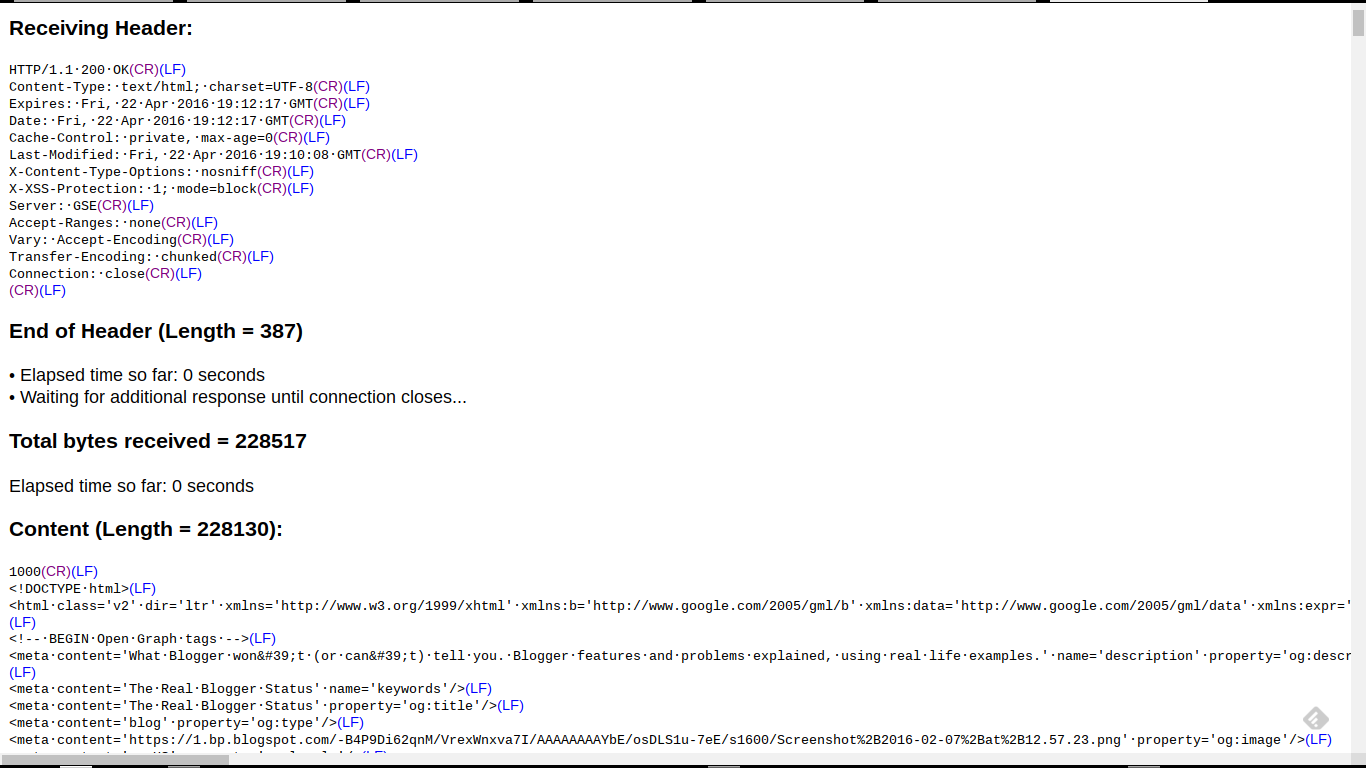
Here, we have an HTTP trace from this blog, http://blogging.nitecruzr.net/.


And, my typical display - which you might see, as an "HTTP trace excerpt", in a custom domain connectivity diagnosis.

http://www.rexswain.com/cgi-bin/httpview.cgi?url=http://blogging.nitecruzr.net/&uag=Mozilla/5.0+(X11%3B+CrOS+armv7l+7834.70.0)+AppleWebKit/537.36+(KHTML,+like+Gecko)+Chrome/49.0.2623.112+Safari/537.36&ref=http://www.rexswain.com/httpview.html&aen=&req=GET&ver=1.1&fmt=AUTO

Sending request:

GET / HTTP/1.1
Host: blogging.nitecruzr.net
User-Agent: Mozilla/5.0 (X11; CrOS armv7l 7834.70.0) AppleWebKit/537.36 (KHTML, like Gecko) Chrome/49.0.2623.112 Safari/537.36
Referer: http://www.rexswain.com/httpview.html
Connection: close
• Finding host IP address...
• Host IP address = 74.125.25.121
• Finding TCP protocol...
• Binding to local socket...
• Connecting to host...
• Sending request...
• Waiting for response...
Receiving Header:

HTTP/1.1·200·OK(CR)(LF)

<meta·content='blogger'·name='generator'/>(LF)
<link·href='http://blogging.nitecruzr.net/favicon.ico'·rel='icon'·type='image/x-icon'/>(LF)
<link·href='http://blogging.nitecruzr.net/'·rel='canonical'/>(LF)
<link·rel="alternate"·type="application/atom+xml"·title="The·Real·Blogger·Status·-·Atom"·href="http://blogging.nitecruzr.net/feeds/posts/default"·/>(LF)
<link·rel="alternate"·type="application/rss+xml"·title="The·Real·Blogger·Status·-·RSS"·href="http://blogging.nitecruzr.net/feeds/posts/default?alt=rss"·/>(LF)
<link·rel="service.post"·type="application/atom+xml"·title="The·Real·Blogger·Status·-·Atom"·href="https://www.blogger.com/feeds/24069595/posts/default"·/>(LF)

The latter connectivity diagnosis might be a part of my 12 link affinity / differential connectivity test.

My trace excerpts include details which I, personally, decided are most useful for me. You may find additional - or less - details to be useful, for you.

Here, we see just two examples, of my HTTP traces. There are an infinity of possibilities.


An online HTTP trace is a useful diagnostic tool, when diagnosing and identifying many different #Blogger problems. Custom domain, malware, spam classification, and other connectivity issues may be diagnosed and documented.

Friday, April 15, 2016

Blogger Magic - Reading A Dig Log

Whether you're setting up or troubleshooting a custom domain, knowing how to read a Dig log is a useful skill.

There are hundreds of registrars, serving the Internet community, each with their own dashboard. Blog owners, setting up their domains for their Blogger blogs, must deal with the syntax and terminology used by each different dashboard.

A Dig log lets the blog owner identify the DNS addresses for the domain, using a consistent display.

By identifying the DNS addresses used in a given domain, a blog owner or an experienced forum helper can diagnose many custom domain DNS related problems.

Here is an example of Dig log use, showing an excerpted Dig log, in a typical forum topic. For more detail, see my earlier post, Diagnosing Problems With Custom Domains: Dig.

I have a domain (www.rockchickenz.com) - and want to link my blog (rockchickenz.blogspot.com).

  • Start by verifying URLs involved.
  • Continue with Dig Web Interface.
  • A full screen print of the Dig log.
  • The relevant portion of the Dig log, from the screen print.
  • The relevant portion of the Dig log, as text.
  • The advice provided, to the blog owner.
  • Alternate / complementary tools used.

Start by verifying URLs involved.

Whenever possible, make a screen print, and a text copy, of the Blogger dashboard Publishing wizard, at Settings - Basic. Knowing the status of the blog and domain - and the exact URLs involved - can go a long way to diagnosing many custom domain publishing problems.

Continue with a Dig Web Interface log.

The best tool for generating a Dig log is Dig Web Interface. Alternate / complementary tools are listed below.

I use DWI, for this purpose, by preference. DWI lets you:

  • Package the URLs in the Dig target, in the reference URL.
  • Include multiple target URLs, in one reference URL.
  • Both capabilities are very useful, in diagnosing Blogger custom domain publishing problems.


Start from the Dig Web Interface page.


Add the domain root and "www" alias, under "Hostnames or IP addresses:".

I select Type: "A", and Nameservers: "Authoritative", for my actual diagnoses.

Click "Dig".


The Dig Log reference URL, for "rockchickenz.com", generated from DWI. Target URLs are "rockchickenz.com" and "www.rockchickenz.com".

http://www.digwebinterface.com/?hostnames=rockchickenz.com%0D%0Awww.rockchickenz.com&type=A&ns=resolver&useresolver=8.8.4.4&nameservers=

A full screen print of the Dig log.

This is the complete Dig log, resulting from the Dig Log URL (above), and containing the relevant portion (below).


This is the Dig log, for "rockchickenz.com".


The relevant portion of the Dig log, from the screen print.

This is the important portion of the screen print (above), and showing the text (below).


This is the relevant portion of the Dig log, for "rockchickenz.com".


Note the TTL value of "14399" - which is a typical Dig log display for TTL set as "14400" (14400 seconds or 4 hours), in the registrar's zone editor. TTL is a setting which is used to adjust name server performance.

Unless you are experienced with DNS setup (and probably don't need to read this advice), you should use the default TTL provided by the registrar, for your domain. Your registrar wants to provide a stable domain for you - and the TTL value affects domain stability.

The relevant portion of the Dig log, as text.

These are the important details from the screen print (above), with colour highlights corresponding to domain specific details (below).

rockchickenz.com@8.8.4.4 (Default):
rockchickenz.com. 14399 IN A 78.137.164.51

www.rockchickenz.com@8.8.4.4 (Default):
www.rockchickenz.com. 14399 IN CNAME ghs.google.com.
ghs.google.com. 21392 IN CNAME ghs.l.google.com.
ghs.l.google.com. 92 IN A 64.233.183.121

The latter is typically seen, with a blog owner having received bogus advice - and reporting an inconsistently accessible blog.

The advice provided, to the blog owner.

The typical advice, provided to the blog owner, would include domain specific details - accompanied by a link to Setting Up DNS Addresses For Custom Domains.

First, generic advice:

Remove the addresses highlighted in red - and add the addresses highlighted in green - and keep the addresses highlighted in yellow.

Then, specific advice:

This is what you have:

rockchickenz.com. 14400 IN A 78.137.164.51
www.rockchickenz.com. 14400 IN CNAME ghs.google.com.

This is what you need:

rockchickenz.com. 14400 IN A 216.239.32.21
rockchickenz.com. 14400 IN A 216.239.34.21
rockchickenz.com. 14400 IN A 216.239.36.21
rockchickenz.com. 14400 IN A 216.239.38.21

www.rockchickenz.com. 14400 IN CNAME ghs.google.com.

The advice references a typical ASymmetrical DNS custom domain setup - the address set used in 99% of all custom domain setups. Note here, the specified TTL of "14400" (4 hours).

Using the above advice, the blog owner can then, if necessary, research the syntax used by the registrar's dashboard (aka "zone editor") - and make the necessary changes.

Alternate / complementary tools used.

Alternate tools, which can be used to generate a Dig log, are the Kloth.Net Dig DNS Lookup, and the Who.Is DNS display. Neither alternate is as compact and complete - but they can be used to verify results.

Complementary tools include the Global DNS Propagation Checker, the intoDNS domain DNS health checker, the Rex Swain HTTP Viewer, and the Whois Lookup.

In some cases, my 12 link affinity / differential connectivity test may be useful.

For more information.

See WikiPedia: dig (command).


One of the most useful tools, for diagnosing #Blogger custom domain problems, is a Dig Log. Learning how to read a Dig Log is a useful skill, for any blog owner wishing to publish a blog to a custom domain.

Wednesday, December 31, 2014

Diagnose Problems, With Blogs Using Dynamic Templates, Using Non Dynamic Templates

The process of examining browser source listings for a blog, and of having a blog owner carefully examine blog template code, is an important part of diagnosing many Blogger problems.

With blogs published to dynamic templates, neither source listings, nor template "Edit HTML", contain as much useful information, as with blogs published to non dynamic templates. Dynamic templates reference scripts, that are hosted in external libraries - and that cannot be updated or viewed.

The idea of having templates that were less customisable was originally supposed to encourage people to work on post content, and increase stability of their blogs - not create instability.

One of the original reasons for having the dynamic templates was to have templates that would encourage blog owners to work more on content - and less on style.

Dynamic templates were designed for less customisation - and increased reliability.

Having the less customised templates would, hopefully, have made the dynamic templates more reliable. Unfortunately, Blogger chose to add features to the dynamic templates, to make them more popular.

The "infinite scrolling" feature of the dynamic templates impressed people, who decided that "infinite scrolling" would be useful for their blogs - but without having noted that dynamic templates have less options for customisation.

People, who like the existing dynamic templates features, demand more features for them. And, they cause more problems, for themselves - since many of them lack the ability to diagnose their own problems.

Eliminate general blog problems, by re publishing to a non dynamic template.

Any time a blog problem is diagnosed, and the problem involves a blog that uses a dynamic template, it's a good idea to start by re publishing the blog to a non dynamic template. Try to diagnose and eliminate any general blog problems, before tackling problems caused by tweaking of dynamic templates.

Just go to the dashboard Template wizard, and choose any non dynamic template - then "Apply to blog". Then, reset the post template (if the posts are involved, in the problem).

Publishing to a non dynamic template lets us use standard diagnostic tools.

With the blog published to a non dynamic template, you (the blog owner) can use the Template Editor to examine general (non dynamic) template CSS, HTML, and / or XML code. Also, you (and any helpers) can use a browser "View Source" window, to examine the rendered blog code.

If you diagnose a problem with non dynamic code, you can edit and correct any problems found. Once that is done, and you are satisfied that there are no non dynamic template related problems, re publish the blog to a dynamic template - and diagnose any remaining problems.

As always, template backups are strongly advised.

If you decide to make any changes to the template code, as always, I advise that you backup the template - before and after making changes. Whenever you detect a problem, recover the template to the backup taken before the changes, and see if this fixes the problem noted.

Wednesday, June 18, 2014

Blog Owners Report Their Reading Lists Contain Just One Entry

This week, we're seeing a few reports, in Blogger Help Forum: Something Is Broken, mentioning a badly shortened dashboard Reading List.
When I want to read the list of the blogs I follow, I can only see 1 blog, instead of the usual 30. When I click on "Show more", nothing happens.
A brief affinity analysis, of current forum reports, suggests that the affected blog owners are using Draft Blogger.

One of the little realised issues with the Reading List is that access to your Reading List requires that you be identified, to Blogger, as you.

If the "One Entry" in your Reading List display is the Blogger Buzz blog, that would suggest that you are not being properly identified. Blogger Buzz is a part of every Reading List, automatically, and can't be removed. If you are only seeing Blogger Buzz, then you, the specific owner of your Reading List, are not being identified.

Reading List content is complex - and subject to various local computer and network problems. Many problems can't be resolved, by Blogger Engineering, alone.

Given the normal instructions to revert to use of Production Blogger, several blog owners have reported success.
I just switched to Production Blogger - and there's no problem now!
This blog owner has just found himself experiencing the latest Draft resident bug.

To determine whether you are in Draft or Production Blogger, when you have this problem, examine your Profile URL, after you login to Blogger. An example (with a hypothetical URL):

Draft:
https://draft.blogger.com/profile/04234326634594848875
Production:
https://www.blogger.com/profile/04234326634594848875
See the difference?

Once again, I'll suggest that you use Draft Blogger to work around specific problems - and when the specific problem, affecting you, is resolved, switch back to Production Blogger. The sanity, that you save, may be your own.

Saturday, November 7, 2009

I Can't See My Blog - What Should I Do?

This is a very difficult question to answer, because of its almost infinite complexity.
  • There are several different causes.
  • There are more symptoms than the number of causes.
  • There are still more ways that bloggers might report the symptoms that they see.
  • The reports, and the symptoms, will vary in both accuracy, detail, and relevance.
  • Different problems can be fixed only by people with different roles, relevant to the blog.
    • Some problems can be fixed only by the blogger (blog owner).
    • Others can be fixed by the owners of the client computers or their network service providers.
    • Still others can only be fixed by Blogger Support or third party server owners.
  • The epidemiology of the problems will produce different observations.
    • A few problems are occasionally observed by Blogger / Google staff.
    • Some problems will be observed by the blogger.
    • Others may be observed by the bloggers friends / blog readers.
    • A very few problems will be observed by everybody.

The term "blogger" can itself cause confusion - some bloggers might be the owners of the blogs, and others might be the viewers - and this, too, needs to be clarified.

And let's also note the difference between "Blogger" and "BlogSpot".
  • The former is where you maintain your Blogger blog.
  • The latter is the native domain where you, by default, publish your Blogger blog.
  • If you're not publishing externally - either to a custom domain (on a Google server) or by FTP (to a third party server of your choice) - you'll be publishing to BlogSpot.
  • Many times, your specific problem might affect your access to one domain, but not the other.
I'm going to describe the complexity of this problem, enumerating by problem cause, to start.
  1. Blocked By ISP
  2. Blocked By Network, or Local, Problem
  3. Custom Domain Problem
  4. Corrupted Content
  5. Deleted Blog
  6. Hijacked Blog
  7. Login Problem
  8. Lost Position In Search Engine Result Pages
  9. Temporary / Transient Problems
  10. Last Resorts
Blocked By ISP

Some ISPs, possibly motivated by political pressure, are blocking blog traffic, from time to time. You may see a variant of the well known

404 Server Not Found

or just as likely, a completely white screen, with no error.

You can frequently get around this problem, by using a proxy server. Unfortunately, there is no guarantee that other readers of the blog will know to do that. If your blog has significant reader population in the geographic regions affected, you're going to lose readership.

http://groups.google.com/group/blogger-help/web/use-a-proxy-server

This problem can only be fixed (worked around) by the blog readers, or the owners of the networks used by the blog readers.


Blocked By Network, or Local, Setting or Security Problem

There are settings and programs on your computer, and on your network, that will affect your ability (or your readers abilities) to access your blog, and other blogs. Any of these individual items, or combinations of these items, can be relevant.

* The DNS setting
http://groups.google.com/group/blogger-help/web/how-to-identify-a-dns-problem-on-your-computer
* The MTU setting
http://groups.google.com/group/blogger-help/web/how-to-check-the-mtu-setting-on-your-computer
* Local network or security problems
http://blogging.nitecruzr.net/2006/12/securing-your-browser-and-painting.html

Any of the above can cause the white screen as well. Both DNS and MTU are settings on your computer, or on your network. If there is a problem, the problem starts at the blogger computer, or with the Internet Service Provider. As in the above scenario, you may be able to use a proxy server.

http://groups.google.com/group/blogger-help/web/use-a-proxy-server


Sometimes, Blogger Support will take responsibility for resolving the problem, but individual bloggers have to let them know that there is a problem. If you are having a problem, and you don't report it, then it's partially your fault if the problem isn't fixed.


This problem can likely be fixed by the blog readers, or the owners of the networks used by the blog readers, although occasionally Blogger Support will become involved to advise the network owners.


Custom Domain Problem

Setting up a blog, published to a Google Custom Domain, demands precise attention to detail and procedure. Sometimes, corruption in the Google server database will result in a well known error (which comes in several interesting flavours).

404 Not Found

This problem you won't get around by using a proxy server, or by making any local or ISP changes. You (the blog owner), or Blogger Support, will have to fix the problem. Frequently, this will involve multiple procedures.

* Post a question here.
http://www.google.com/support/forum/p/blogger/ask?hl=en
* Republishing the blog back to BlogSpot, then repeating back to the custom domain.
http://blogging.nitecruzr.net/2007/11/custom-domain-publishing-and-404-error.html
* Recycling the domain settings using Google Apps.
http://blogging.nitecruzr.net/2007/06/another-blog-is-already-hosted-at-this.html


Corrupted Content

Part of the blog is gone. Maybe the header is there, but no post. Or the posts are there, but the sidebar is blank. Oh no! What do I do now? Well, in this scenario, you may be looking at another case of the old dropped post / sidebar. If it's not a simple case of the posts or the sidebar having dropped down the page, you may have a corrupt template, and reloading the template may resolve the problem.

Here, too, you may see the well known error

404 Not Found

This problem must be fixed by the blog owner. Nobody else - neither Blogger Support, nor the blog readers - can fix corrupted content.


Deleted Blog

You made a mistake, and deleted your own blog, or maybe you or another administrator removed you from the permissions list. DOHH. Mistakes happen. Or the blog may have been removed by Blogger - for just cause - whether falsely or genuinely. Or, did you delete the blog intentionally, without considering the possible consequences?


Hijacked Blog

The bad guys may have hijacked another blog. What you're looking at may or may not contain your content. You may or may not be able to access the dashboard, or the post editor, to correct the problem.


Login Problem

You're logged in with the wrong account, or not properly logged in. Or maybe you tried to change the account name, and simply setup a new account without realising it. Check and make sure that you don't have another account, that the blog is registered to. Find out what Blogger accounts are associated with your email address.

* Blogger Help: My blog disappeared from my account! What do I do?.
http://help.blogger.com/bin/answer.py?answer=41973
* Blogger Help: I can't log in. What should I do?.
http://help.blogger.com/bin/answer.py?answer=41971
* Blogger Help Group: Welcome to Login Issues!.
http://groups.google.com/group/blogger-help-loginissues/tree/browse_frm/thread/b188e22f091f0c62/18df9b57c7ccab41?rnum=1&_done=%2Fgroup%2Fblogger-help-loginissues%2Fbrowse_frm%2Fthread%2Fb188e22f091f0c62%2F%3F#doc_18df9b57c7ccab41
* Google Accounts: Google Accounts Help
https://www.google.com/support/accounts/
* The Real Blogger Status: Schizophrenia When Logging In To Blogger
http://blogging.nitecruzr.net/2007/02/schizophrenia-when-logging-in-to.html

If you're certain that you made the right choice, but you got the wrong results, clear cache and cookies, and try again.

http://blogging.nitecruzr.net/2006/08/bypass-or-clear-your-local-cache.html


Remember that part of the Blogger security strategy involves keeping the identity of the owner, of any blog, confidential. You don't want Blogger telling anybody who you are, so don't expect to email Blogger

I forgot the account (I changed my email address). What's my account?

and get a useful reply. You will have to do some work, and authenticate yourself, somehow.

http://blogging.nitecruzr.net/2006/12/your-blog-is-forever.html


Lost Position In Search Engine Result Pages

There are many reasons why you won't be able to find your blog listed, in Google Search. Some start with your needing to publicise the blog properly.

http://groups.google.com/group/blogger-help/web/how-to-get-traffic-and-repeated-readers-for-your-blog

But even when you do spend days publicising your blog, maybe somebody else spent more days, and his blog replaced yours in your desired search list position. Now, you're just going to have to work harder.

http://groups.google.com/group/blogger-help/web/blogging-is-all-about-patience


Temporary / Transient Problems

Right now, bloggers are reporting problems with their blogs, with the well known

Operation Aborted

Blogger Support has to fix the problems causing this symptom. While we await action by Blogger Support, we may have to help ourselves, using various workarounds.

http://blogging.nitecruzr.net/2009/05/internet-explorer-and-operation-aborted.html

Other problems, too many (and too transient) to explicitly enumerate here, will come up from time to time.

http://blogging.nitecruzr.net/search/label/Current%20Problems?max-results=100


Last Resorts

If none of the above problem descriptions helps you decide how to attack your problem, and the blog really isn't accessible, act immediately.

* Put a stub blog in place, if you can do so.
http://blogging.nitecruzr.net/2006/06/stub-post.html
* Report the problem.
http://www.google.com/support/forum/p/blogger/ask?hl=en
* And join the crowd, at Google Blogger Help.
http://www.google.com/support/forum/p/blogger?hl=en

Friday, September 12, 2008

Troubleshooting Problems With Your Blog, Or With Your Connection To Blogger

I'm a desktop / network support technician, and I enjoy troubleshooting problems with other peoples computers. I prefer that my own computers remain trouble free (of course, that won't always be the case). I can apply my skills in desktop / network troubleshooting to the tasks involved in troubleshooting problems with Blogger, and Blogger blogs.

So, consider this. Blogspot / Blogger hosts millions of blogs, and has many more millions of worldwide customers reading those blogs. You send in a complaint to Blogger Support, about your blog, or your connection to Blogger / BlogSpot, and your complaint goes into a long queue. And if it's just YOUR problem with YOUR blog, or YOUR connection, that's where it will likely stay. Problems affecting multiple blogs, and problems affecting multiple Bloggers, or customers, will always get higher priority. That's common sense.

So, if YOU notice a problem with YOUR blog, or with YOUR connection, it's up to YOU to do some initial troubleshooting. Now, as a desktop support technician, I preach diagnostic procedure. Constantly.

Note: This article is a Blogger specific adaptation of Solving Network Problems - A Tutorial.

Here's where multiple observations is essential. If you see a problem with your blog, do any of your friends see the same problem? Do you see the same problem with your friends blogs?

You also have to understand the concept of cache, which partially explains why not everybody sees a problem with your blog at the same time.

Now the customer, and server, population for Blogger is immense. Blogspot uses thousands of servers to host the millions of blogs that they have. So the fact that your friends may or may not see the same problem on your blog, or you may or may not see the same problem on your friends blogs, is not in itself definitive of a worldwide Blogspot problem. But it can help us develop a procedure for diagnosing your problem.

There are several major items involved in any problem.

  1. The content (the text that you typed into your post, or the template) for your blog might have (gasp) coding errors. This will affect everybody who views your blog, until you fix your mistakes. And, if you haven't done this yet, backup your blog. NOW.

  2. The database where your blog is stored might be corrupt. This problem may affect other blogs, and other Bloggers. It will affect other folks viewing your blog, if they don't have a good copy already cached on their computer. If your problem is not part of a major outage, republishing your blog, which takes the source text (item #1) and rebuilds the blog into a web page, may resolve this.

  3. The server which serves Blogspot content to you may be having problems. This will affect your ability to view multiple blogs. Other Bloggers using this same server will have the same problems. With 4500+ servers, it's possible (but not likely) that you may know somebody else sharing your server. If your problem is not part of a major outage, clearing cookies and changing your server may resolve this.

  4. Your computer, or your network, may have problems, or some characteristic of your ISPs service may cause a problem with a Blogger server. I work with these sort of problems, and know how tricky they are to diagnose. This will affect you only, or others in your area too. It may, or may not, affect your access to multiple blogs.

  5. The cache of your blog, and other blogs, on YOUR computer, may contain bad content from any previous existence of any problems. This should only affect your computer, though any other computer may have similar problems.


  • If both you and your friends see a problem with your blog, there's a good chance that any fixes that affect only you won't have too much effect. Here you need to concentrate on items #1 - #3, from the above list.

  • On the other hand, if you have multiple friends viewing your blog (and here is one example why having friends is a good thing), and nobody but you sees any problems, items #4 and #5 are more likely suspects.

  • If some friends see problems, and others don't, it's still more likely that the problems involve items #1 - #3.

  • If you see problems with your friends blogs, and your friends see those same problems, it's likely an outage at Blogspot. Maybe Blogger Status will acknowledge the outage. Don't hold your breath, but look there anyway. File a Blogger Contact Report, but again, don't hold your breath.


OK, let's translate the above sermon above into a usable procedure.

  1. Check Blogger Status. Check Real Blogger Status (here). It's possible that the problem has been noted already. Check the online Blogger databases - Blogger Help, Blogger Known Issues, and Blogger Status. Check the online forums - Google Blogger Help, and Blogger Forum.

  2. Check Recently Updated Blogs, which lists all blogs updated in the immediately previous 10 minutes. The number of updates enumerated there may confirm or deny any suspicion of a widespread publishing problem. If any doubt, check in another 15 - 20 minutes (open another window), and compare the 2 lists.

  3. Note that both Blogger Status and Real Blogger Status provide Atom and / or RSS feeds. If you use Syndication / Atom, you may find this convenient. Or, you can Follow this, and other, blogs, for a more convenient subscription.

  4. Are you, and your friends, having problems viewing your blog, and other blogs? If the problems are just yours, or if they involve multiple blogs, pray, then troubleshoot the cache. If you see an improvement, clear cache and cookies on your computer. If this helps you, let your friends know, and have them do the same (if they are affected).

  5. If your friends see the same problems with your blog that you see, chances are that the previous step won't fix things by itself. Did you just post something, immediately before the problem was noted? Go back and verify what you just changed. Correct the problem, if necessary, and republish. If you get an error from publishing, proceed to the last step.

  6. Did you make a change in the blog content, from executing the previous step? If so, clear your cache.

  7. If you have executed all above steps, and you or your friends still see problems, then it's time to seek collaborative analysis.

    • Try to file a report with Blogger Support, observing their current (and dynamic) problem resolution policies. Wait for the botmail.

    • Reply to the botmail, objectively pointing out that none of the suggested references - none of the online Blogger databases, or the online forums, offer any help.

    • File a description of the problem, what you've done to date, and the botmail problem number (if any provided), at Blogger Forum and at Google Blogger Help.

    • Look in the forums for others with your problem, or for any helpful suggestions. Let others know that you are having this problem. Note any correspondence with Blogger Support, and note your problem number. Provide useful diagnostic information about you, your computer, and your Internet service. Links between your thread in one forum, and any others, are not a bad idea either.

    • Check back in Blogger Forum and at Google Blogger Help, for comments to your posts, regularly. Be prepared to answer questions. Crosspost updates to the other forum.


  8. If any of the above steps help you diagnose or resolve the problem,

    1. Say a prayer of thanks to the deity of your faith.

    2. Backup your blog. Having a local mirror of your blog can be very useful.

    3. Sign my GuestBook, or alternately, leave me a comment. Knowing that this blog is of use, or not, motivates ongoing additions and improvements.

    4. Post back in the above mentioned forums, and close any open threads. Become part of The Solution.


If you're having a problem, don't just drop it on Blogger Support. Involve Blogger Forum and Google Blogger Help, too. Update all 3 groups, regularly, when suggestions are made by any others. Be patient and persistent.

>> Top

Tuesday, April 22, 2008

FTP Publishing - If You're Having Problems, Check Your Settings While You Wait For Support

Many different reports are seen in the forums, this month, about problems with FTP publishing. The old "Your publish is taking longer than expected ..." error is reported a lot. Alternatively, some folks report seeing no error, yet their posts simply don't end up on the blog.

Blogger Support will try to help you - really. As long as you report the problem objectively, and wait patiently. And they can help you best, when it's a problem that they can solve.

Some problems they can't help you solve, or at least can't help you as easily as you can help yourself. Problems with FTP Settings are problems that you can solve, on your own, a lot quicker than Blogger can solve for you.

If you have a problem with FTP Publishing, report the problem. And while you're waiting for their attention, spend some time diagnosing the problem on your own.
I fished around and discovered that my host, pair.com, using the special additional login username and password that I added for Blogger, was automatically routing posts to my blog directory. So what happened is that instead of files being uploaded to
pair.com/users/me/public_html/blog/
they went to
pair.com/users/me/public_html/blog/users/me/public_html/blog/


This is an example of good diagnostic work. Maybe Blogger would have eventually figured out the problem, by looking at the settings for the blog. Maybe not. Maybe Blogger changed the way they process the settings. If so, this report will hopefully help them identify their problem. It certainly won't hurt.

>> Top

Navigate» Become author for this Blog